
Limits & Considerations
Scan Limits
Section titled “Scan Limits”Each Data Quality Sense activation comes with a fixed number of scans (20 by default). Every scan execution — manual or scheduled — counts toward this quota.
Tracking Your Usage
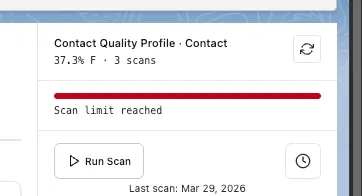
Section titled “Tracking Your Usage”The definition card in Insight Studio displays a progress bar showing how many scans have been used. When the limit is approaching, the bar turns red and shows a Scan limit reached warning.
What Happens When the Limit Is Reached
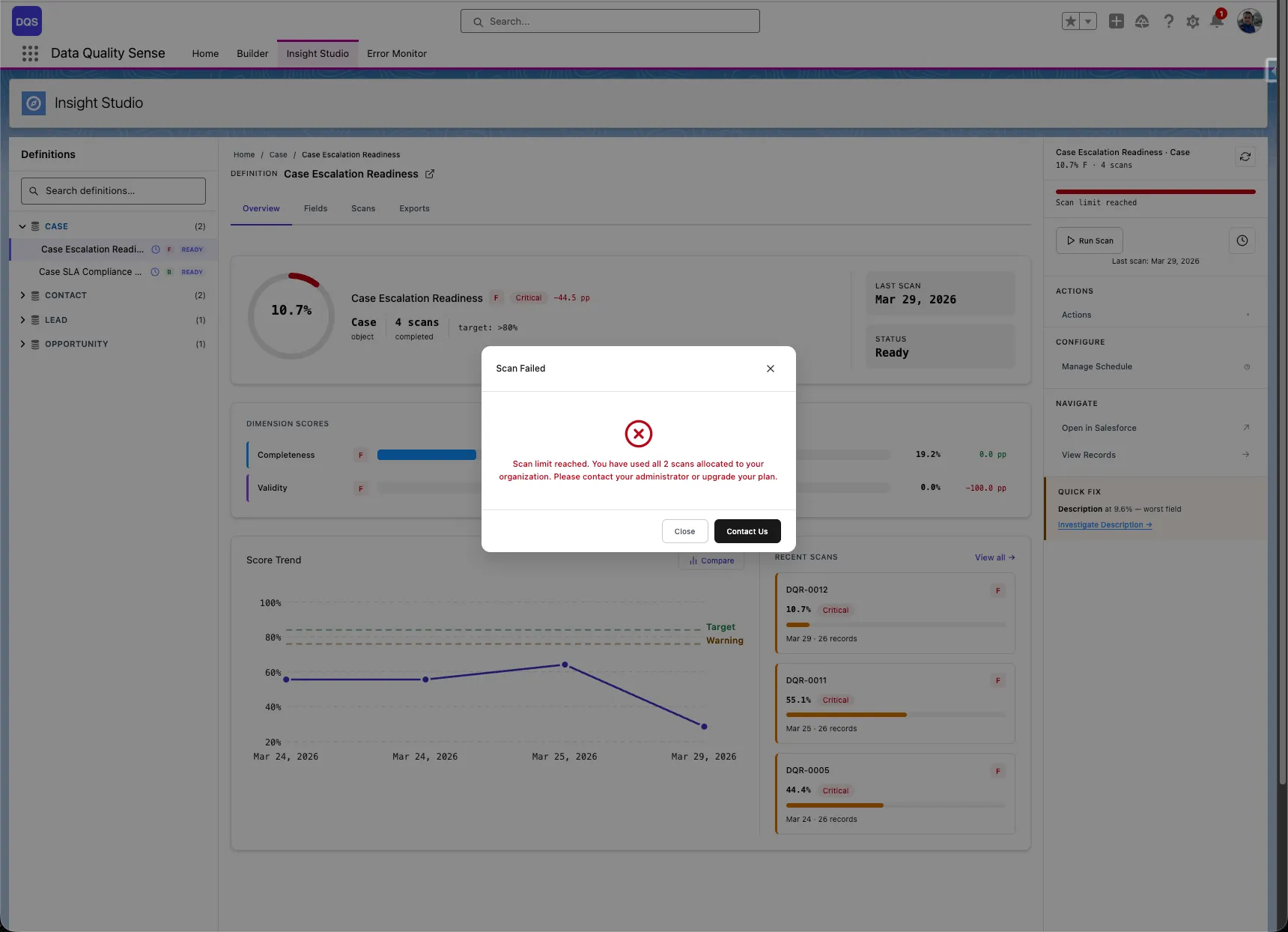
Section titled “What Happens When the Limit Is Reached”Once all scans are used, attempting to run a new scan triggers an error dialog informing you that the scan limit has been reached.
Requesting More Scans
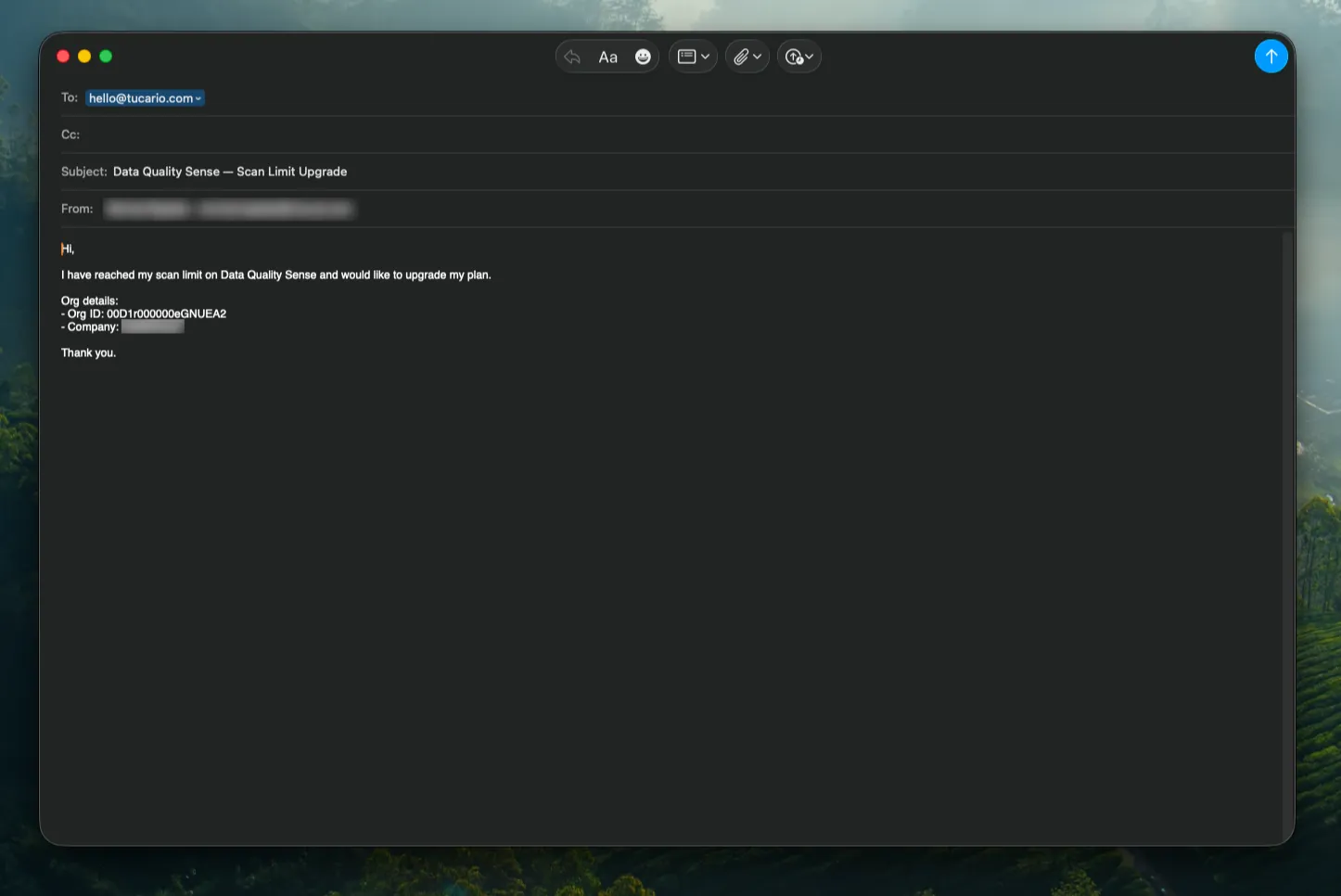
Section titled “Requesting More Scans”Click the Upgrade button in the error dialog to open a pre-filled email requesting additional scans. The email is addressed to hello@tucario.com and includes your Org ID automatically.
Salesforce Governor Limits
Section titled “Salesforce Governor Limits”DQS runs entirely within Salesforce and is subject to standard governor limits. The processing engine is designed to work within these constraints.
Batch Processing Limits
Section titled “Batch Processing Limits”| Limit | Salesforce Maximum | DQS Impact |
|---|---|---|
| Batch size | 2,000 records per chunk | Configurable via DQS settings |
| Concurrent batches | 5 per org | DQS uses 1 batch per scan |
| SOQL queries per transaction | 100 | Dynamic queries used efficiently |
| DML operations per transaction | 150 | Results batched for efficient writes |
| Heap size | 12 MB (async) | Large text fields may contribute |
Scheduling Limits
Section titled “Scheduling Limits”| Limit | Salesforce Maximum |
|---|---|
| Scheduled Apex jobs | 100 per org |
| CRON triggers | 100 per org |
Performance Considerations
Section titled “Performance Considerations”Object Size
Section titled “Object Size”| Object Size | Expected Scan Time | Notes |
|---|---|---|
| < 10,000 records | Minutes | Fast processing |
| 10,000 – 100,000 | 10–30 minutes | Normal batch processing |
| 100,000 – 1,000,000 | 30–60 minutes | Consider off-peak scheduling |
| > 1,000,000 | 1+ hours | Schedule during maintenance windows |
Number of Fields
Section titled “Number of Fields”More fields in a definition means more processing per record. A definition with 50+ fields will take longer than one with 10 fields.
Number of Capabilities
Section titled “Number of Capabilities”Each enabled capability adds a dimension strategy execution per chunk. Enabling all 7 capabilities takes approximately 7x longer than enabling just one.
Best Practices
Section titled “Best Practices”- Schedule during off-peak hours — Minimize impact on users
- Start small — Begin with one capability and a few key fields, then expand
- Monitor batch jobs — Use Setup → Apex Jobs to check scan progress
- Use retention policies — Prevent unbounded result growth
- Stagger schedules — Don’t schedule all definitions at the same time
Storage
Section titled “Storage”Scan results consume Salesforce data storage. Each scan creates:
- 1 Dimension Result per enabled capability
- 1 Field Result per field per capability
- Multiple Metric Results per field
With data retention configured, old results are automatically purged.