
Scheduling
Scan Scheduling
Section titled “Scan Scheduling”DQS supports automated recurring scans via CRON-based scheduling. Once configured, scans run automatically without manual intervention.
Creating a Schedule
Section titled “Creating a Schedule”- Navigate to the definition in Insight Studio
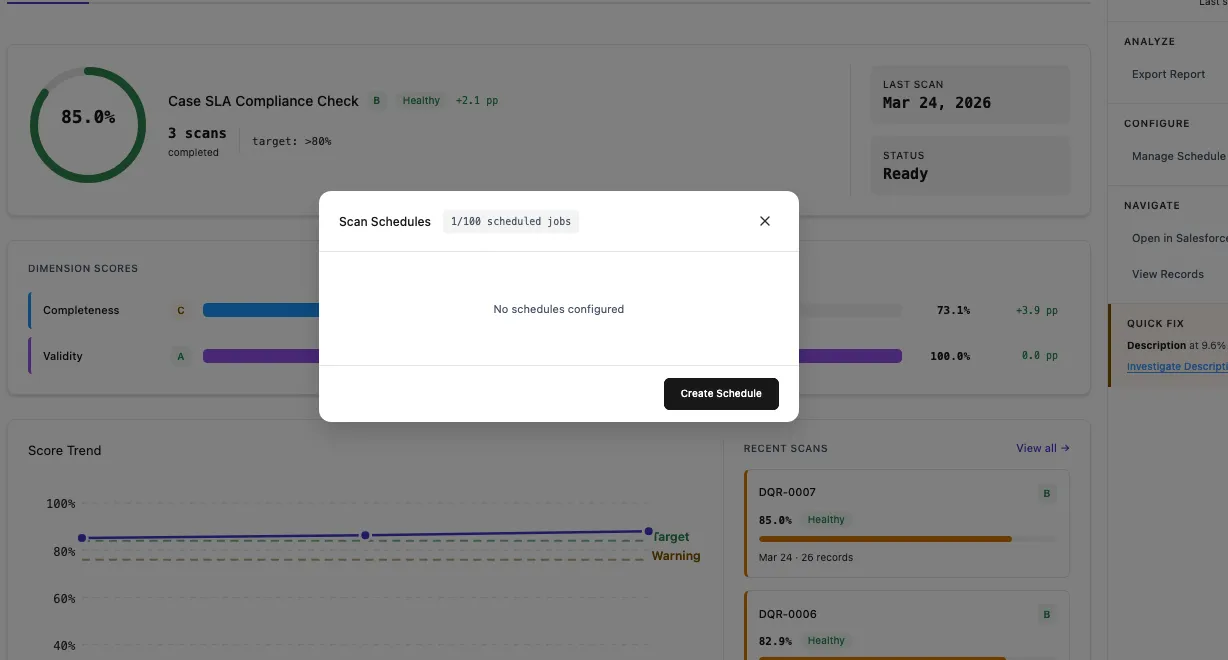
- Open the Scan Schedules modal from the sidebar
- Click Create Schedule
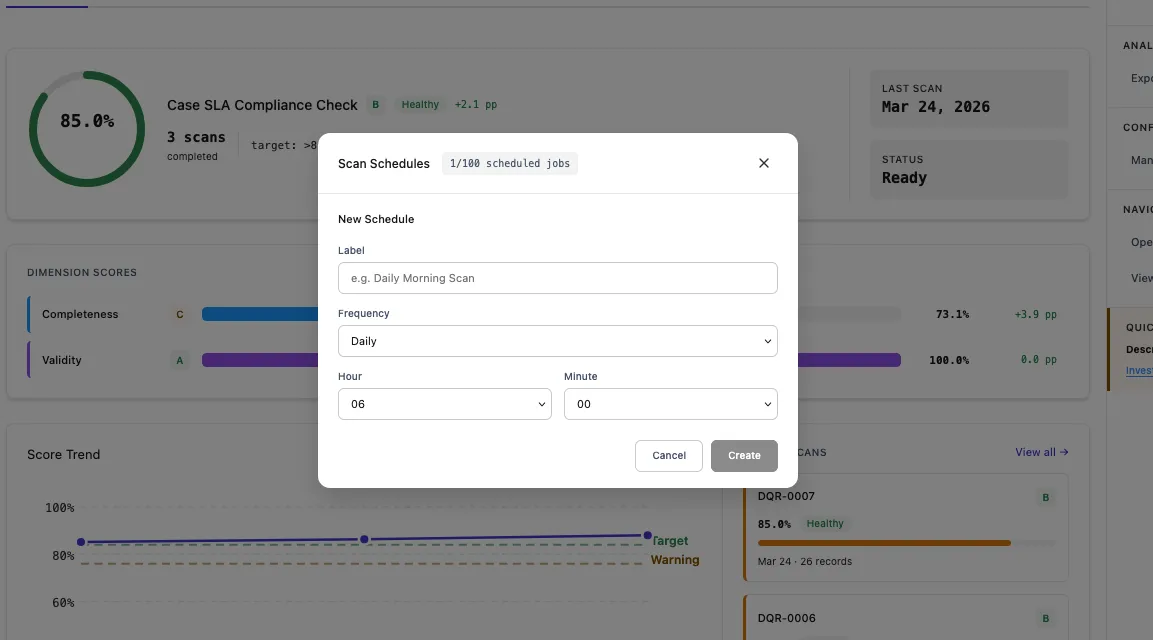
- Configure the schedule — set the frequency, time, and optionally a name:
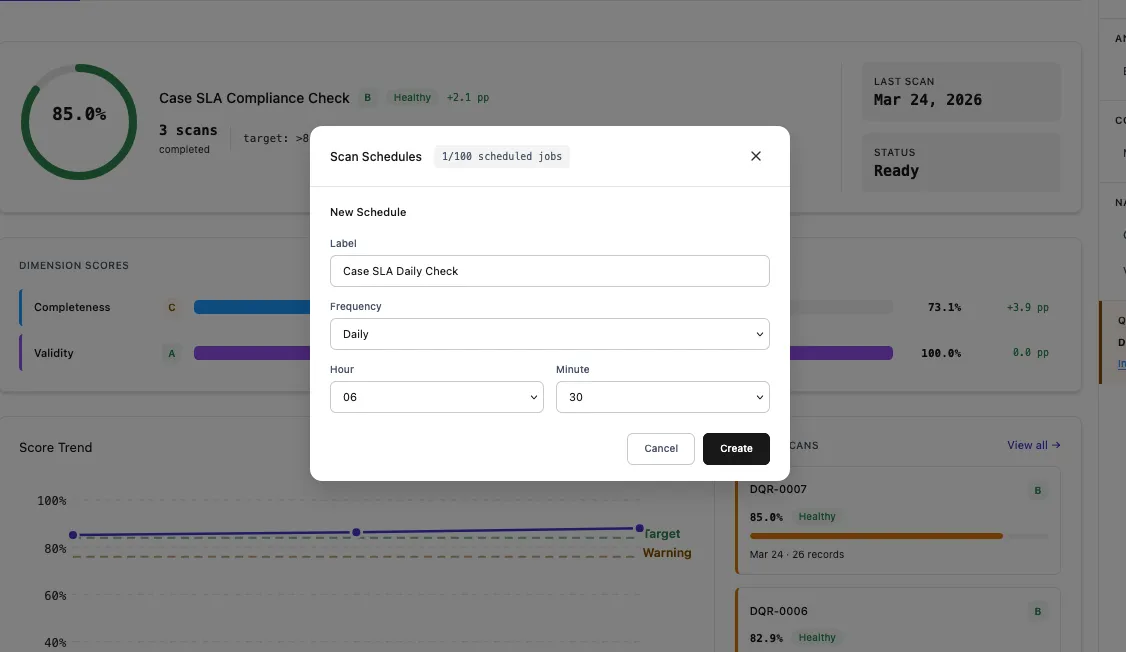
- Review and Save the schedule:
Schedule Settings
Section titled “Schedule Settings”| Setting | Description | Example |
|---|---|---|
| Name | Display name for the schedule | Case SLA Daily Check |
| Frequency | How often the scan runs | Daily, Weekly, Monthly |
| Time | What time of day to run | 06:30 |
| Day of Week | For weekly schedules | Monday |
| Day of Month | For monthly schedules | 1st |
CRON Expressions
Section titled “CRON Expressions”Under the hood, schedules use Salesforce CRON expressions. DQS provides a user-friendly UI that generates the CRON expression for you, but advanced users can also set custom expressions.
Common Schedules
Section titled “Common Schedules”| Schedule | CRON Expression |
|---|---|
| Daily at 2 AM | 0 0 2 * * ? |
| Weekly on Monday at 6 AM | 0 0 6 ? * MON |
| Monthly on 1st at midnight | 0 0 0 1 * ? |
| Every weekday at 5 AM | 0 0 5 ? * MON-FRI |
Schedule Management
Section titled “Schedule Management”Viewing Schedules
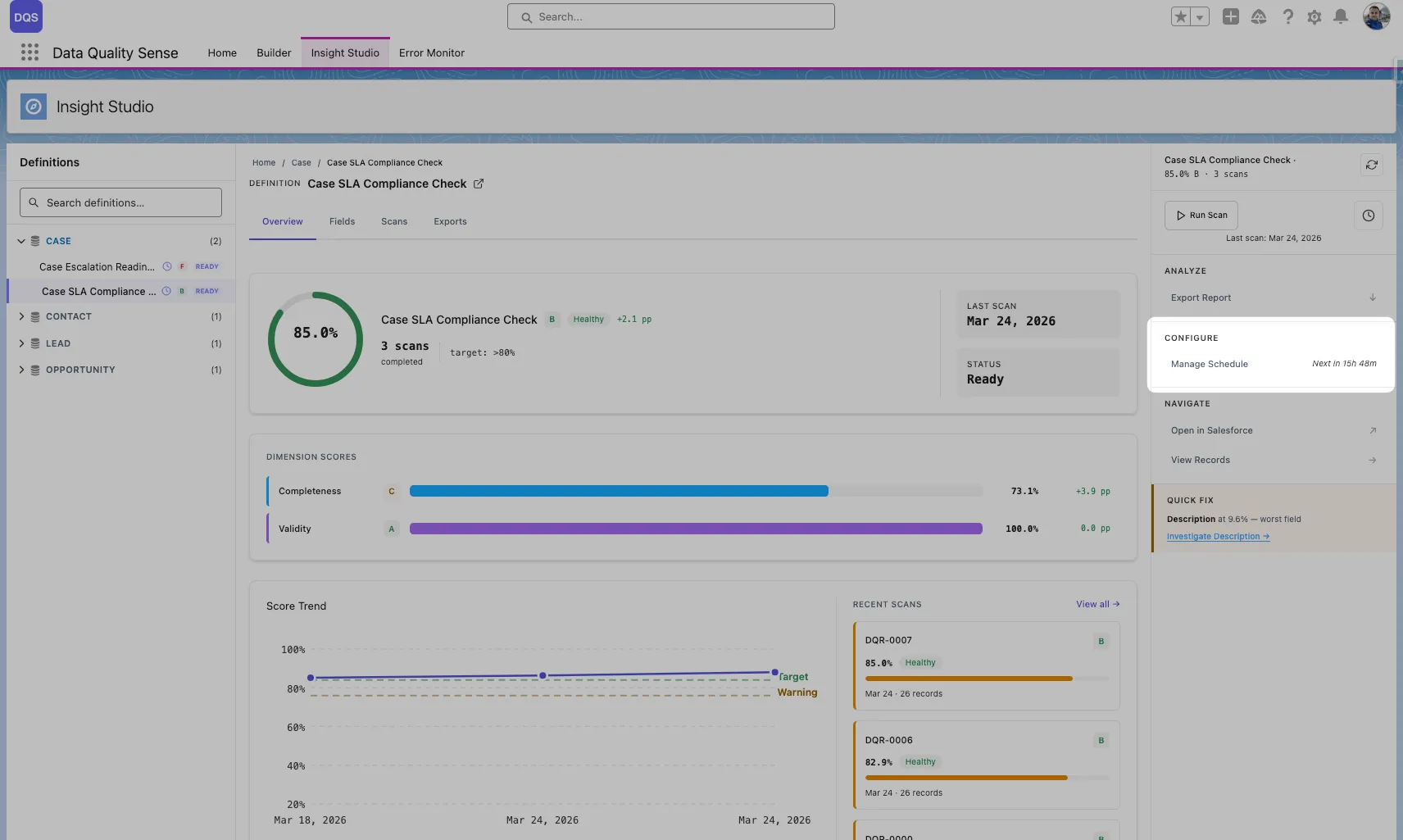
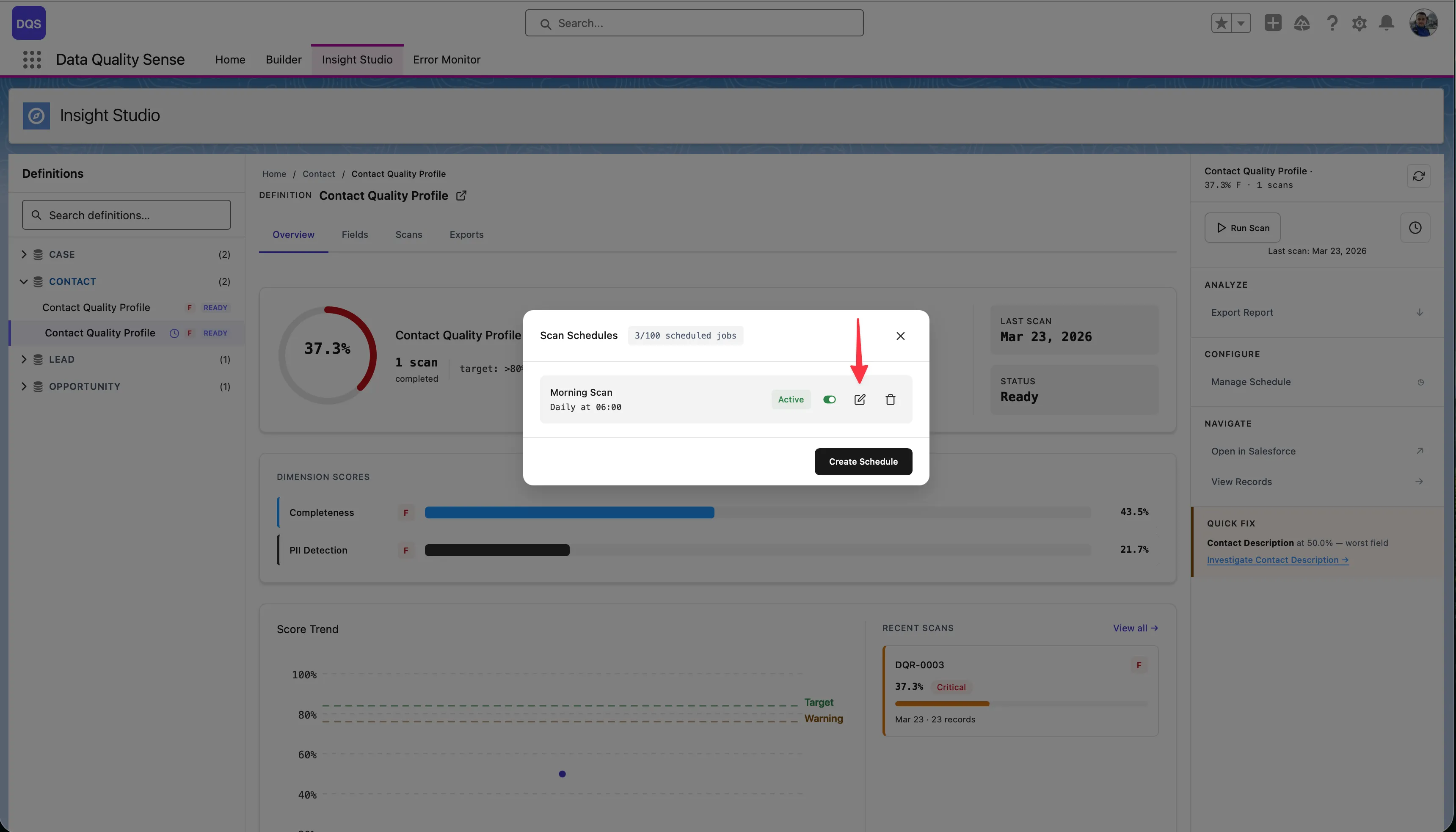
Section titled “Viewing Schedules”The Scan Schedules modal shows all configured schedules with their status, frequency, and next run time. The counter shows how many scheduled jobs are used out of the Salesforce limit (e.g., 2/100).
Editing Schedules
Section titled “Editing Schedules”Click the edit icon to modify schedule settings. The existing schedule is replaced with the new configuration.
Activating / Deactivating
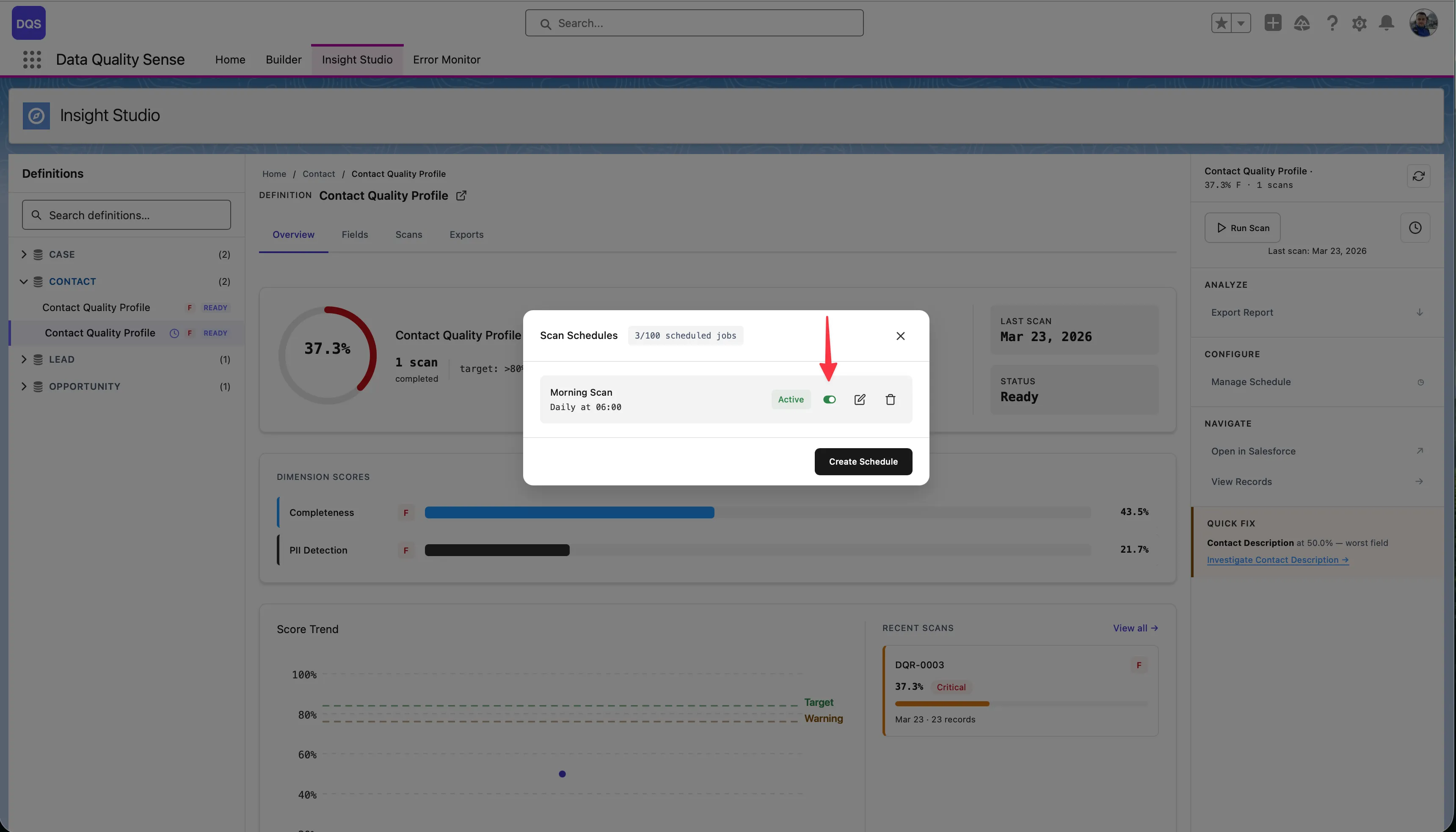
Section titled “Activating / Deactivating”Use the Active toggle to temporarily pause a schedule without deleting it.
Deleting Schedules
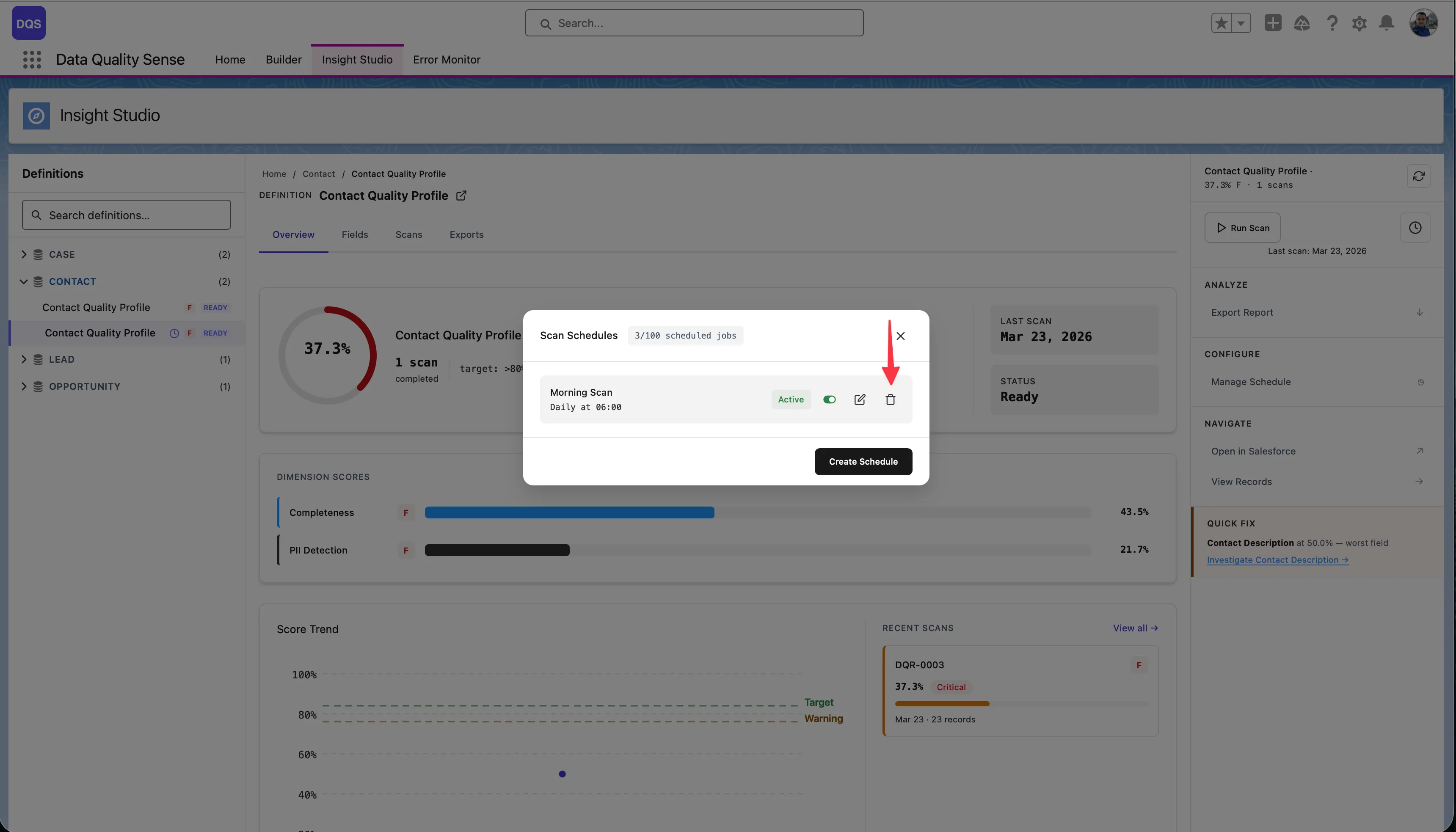
Section titled “Deleting Schedules”Click the delete icon to remove a schedule. Manual scans remain available.
Audit Trail
Section titled “Audit Trail”Every scan records who triggered it:
- Manual scans — Records the user who clicked “Run Scan”
- Scheduled scans — Records “Scheduled” as the trigger source
- Timestamp — When the scan started and completed
Considerations
Section titled “Considerations”- Only Active definitions can be scheduled
- Running scans consume Salesforce governor limits (batch Apex)
- Schedule scans during off-peak hours to minimize impact
- Multiple definitions can be scheduled at different times