
Data Retention
Retention Policies
Section titled “Retention Policies”DQS includes automated data purging to prevent unbounded growth of scan results and error logs. Retention policies are configured via Custom Metadata Types and can be adjusted by administrators.
Configuration
Section titled “Configuration”All retention settings are stored in DQS_Configuration__mdt (Category: “Retention”):
| Setting | Default | Description |
|---|---|---|
| Error Log Retention | 7 days | Days before error logs are deleted |
| Scan Result Retention | 30 days | Days before dimension results are purged |
| Purge Batch Size | 2,000 | Records processed per batch chunk |
| Purge CRON Expression | 0 0 2 * * ? | When the purge job runs (default: daily at 2 AM) |
How Purging Works
Section titled “How Purging Works”The purge process runs as a chained batch job:
DQS_DataPurgeScheduler (CRON trigger) └── DQS_ErrorLogPurgeBatch (deletes error logs where Expires_At <= NOW) └── DQS_ResultPurgeBatch (deletes dimension results older than retention window) └── Cascade: Field Results + Metric Results (deleted automatically via master-detail relationship)Cascade Deletion
Section titled “Cascade Deletion”When a DQS_Dimension_Result__c record is deleted:
- All child
DQS_Field_Result__crecords are automatically deleted - All grandchild
DQS_Metric_Result__crecords are automatically deleted
This happens via Salesforce’s master-detail cascade — no additional batch processing is needed.
Adjusting Retention
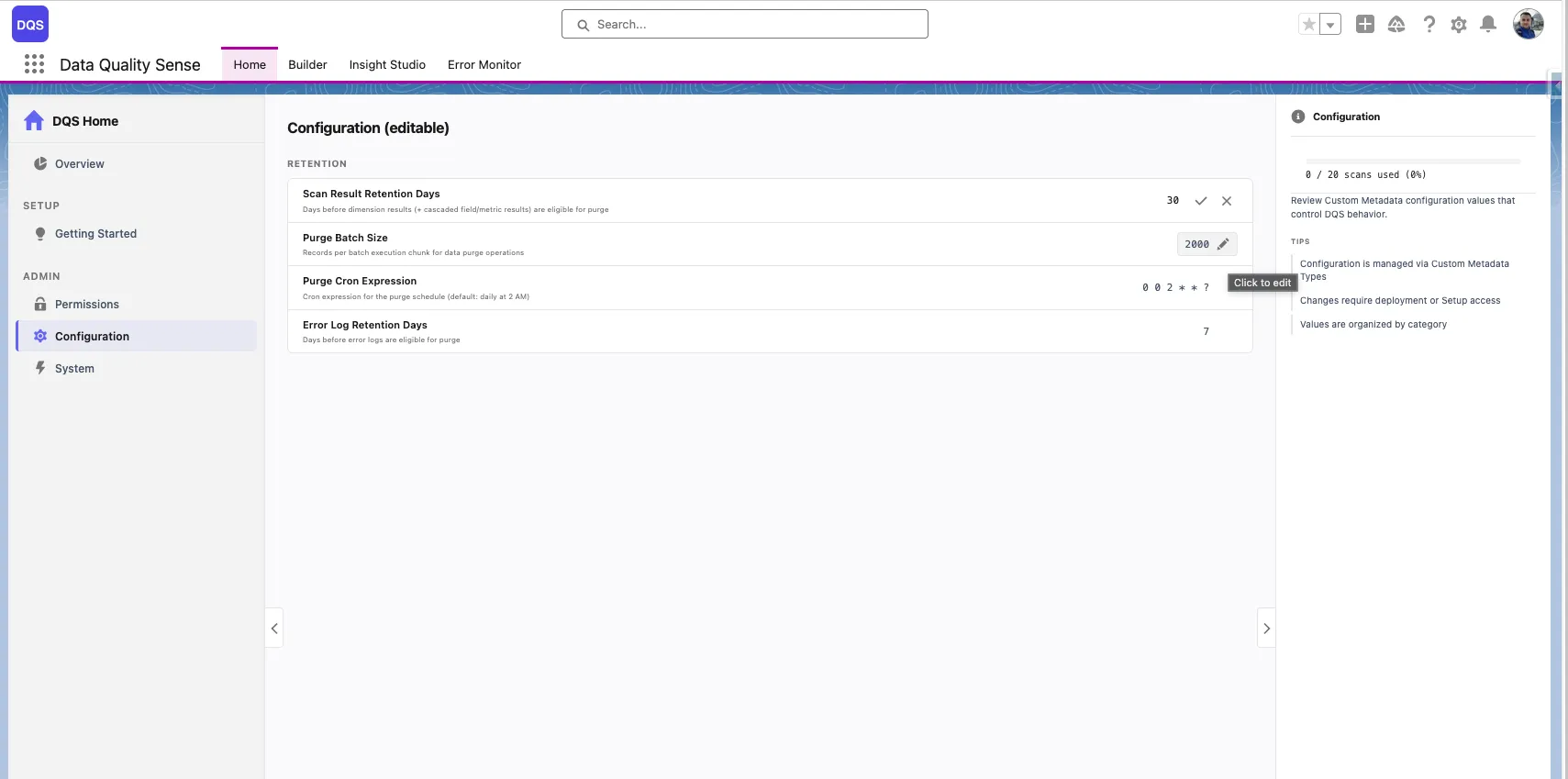
Section titled “Adjusting Retention”To change retention periods, edit the values directly from the Configuration panel on the DQS Home page:
Alternatively, you can update them via Salesforce Setup:
- Navigate to Setup → Custom Metadata Types → DQS Configuration
- Find the relevant record (e.g.,
Scan_Result_Retention_Days) - Edit the value
- Changes take effect on the next purge run
Monitoring
Section titled “Monitoring”- Check the Error Management Console for purge job errors
- Review
DQS_DataPurgeSchedulerin Setup → Scheduled Jobs to verify the purge is running - Use Salesforce reports to monitor result volume over time