
Quick Start
Your First Scan in 5 Minutes
Section titled “Your First Scan in 5 Minutes”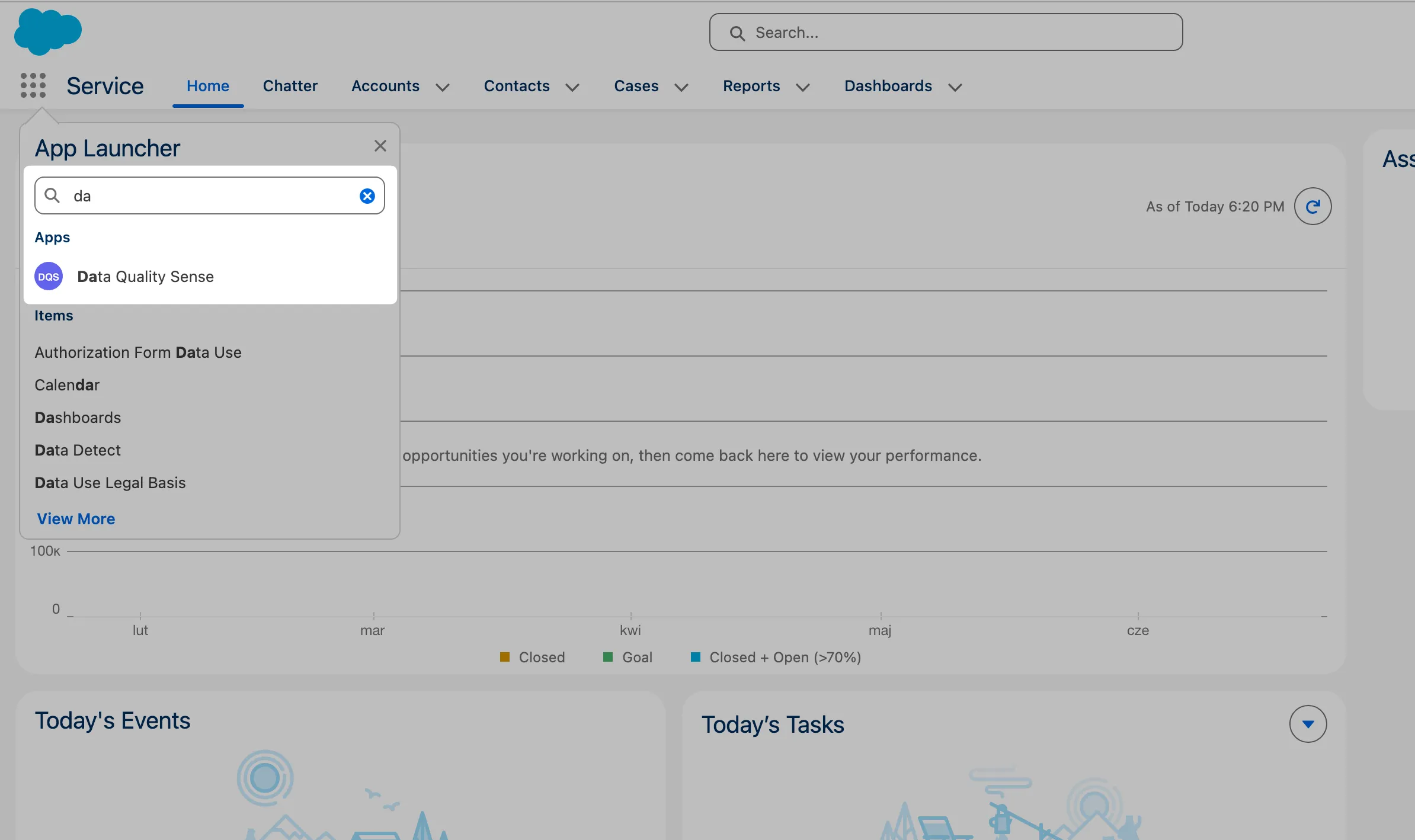
-
Open DQS Builder
Navigate to the Data Quality Sense app in Salesforce. If permissions are configured correctly, the Builder tab loads automatically.
-
Create a new definition
Click New Definition. Give it a name (e.g., “Account Quality Check”) and select the target object — for example,
Account. -
Select fields
The field picker shows all available fields on the selected object. Pick the fields you want to monitor. You can use the search bar to filter, and sort by field type or label.
-
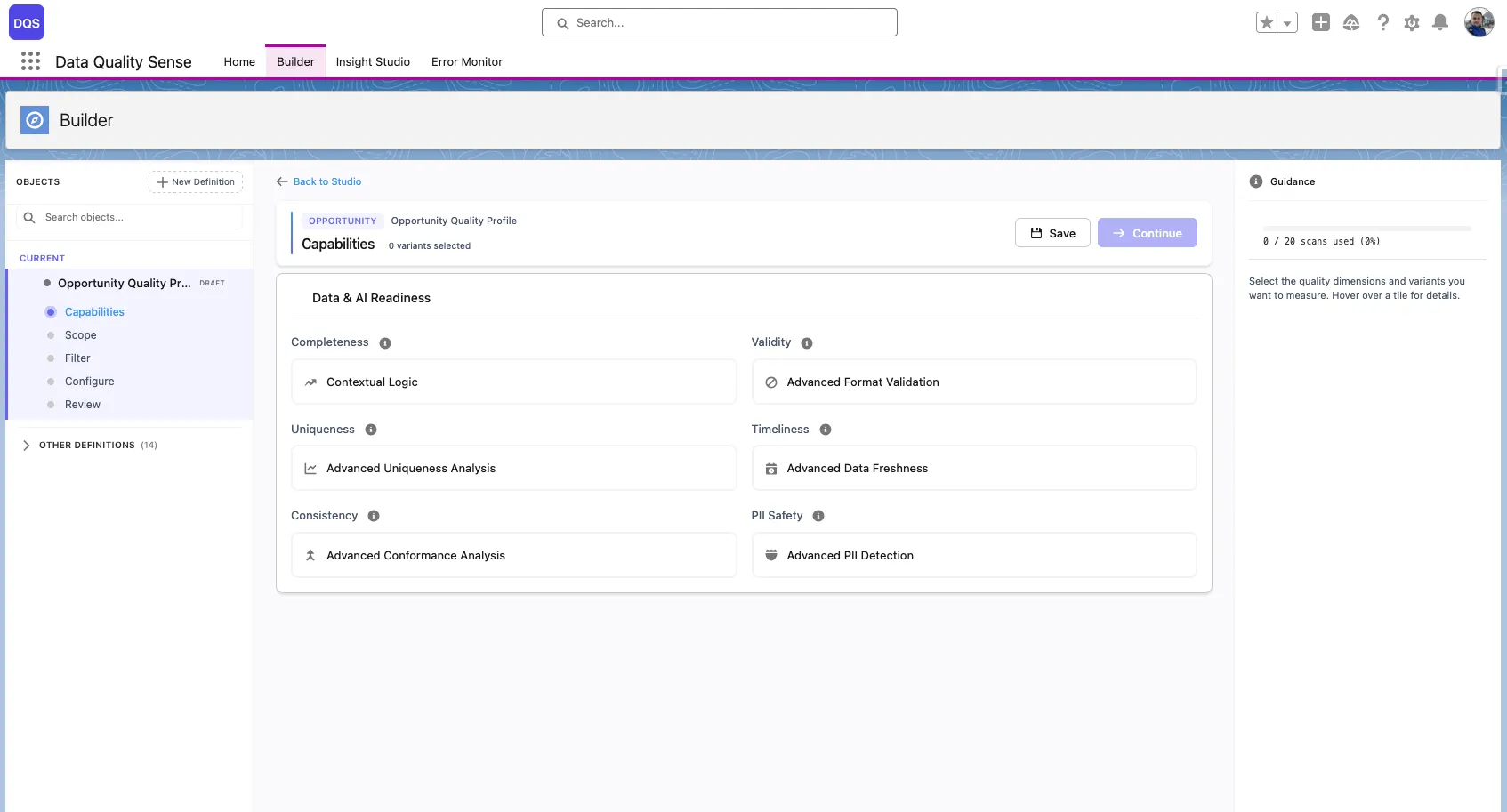
Choose capabilities
Select which quality dimensions to evaluate:
- Completeness — are the fields populated?
- Validity — do values match expected formats?
- Uniqueness — are there duplicate values?
- Timeliness — is the data current and up-to-date?
- Consistency — are related fields logically consistent?
- PII Detection — does free text contain personally identifiable information?
Start with Completeness for the quickest setup.
-
Review and activate
Review your configuration on the summary screen. Click Activate to move the definition from Draft to Active status.
-
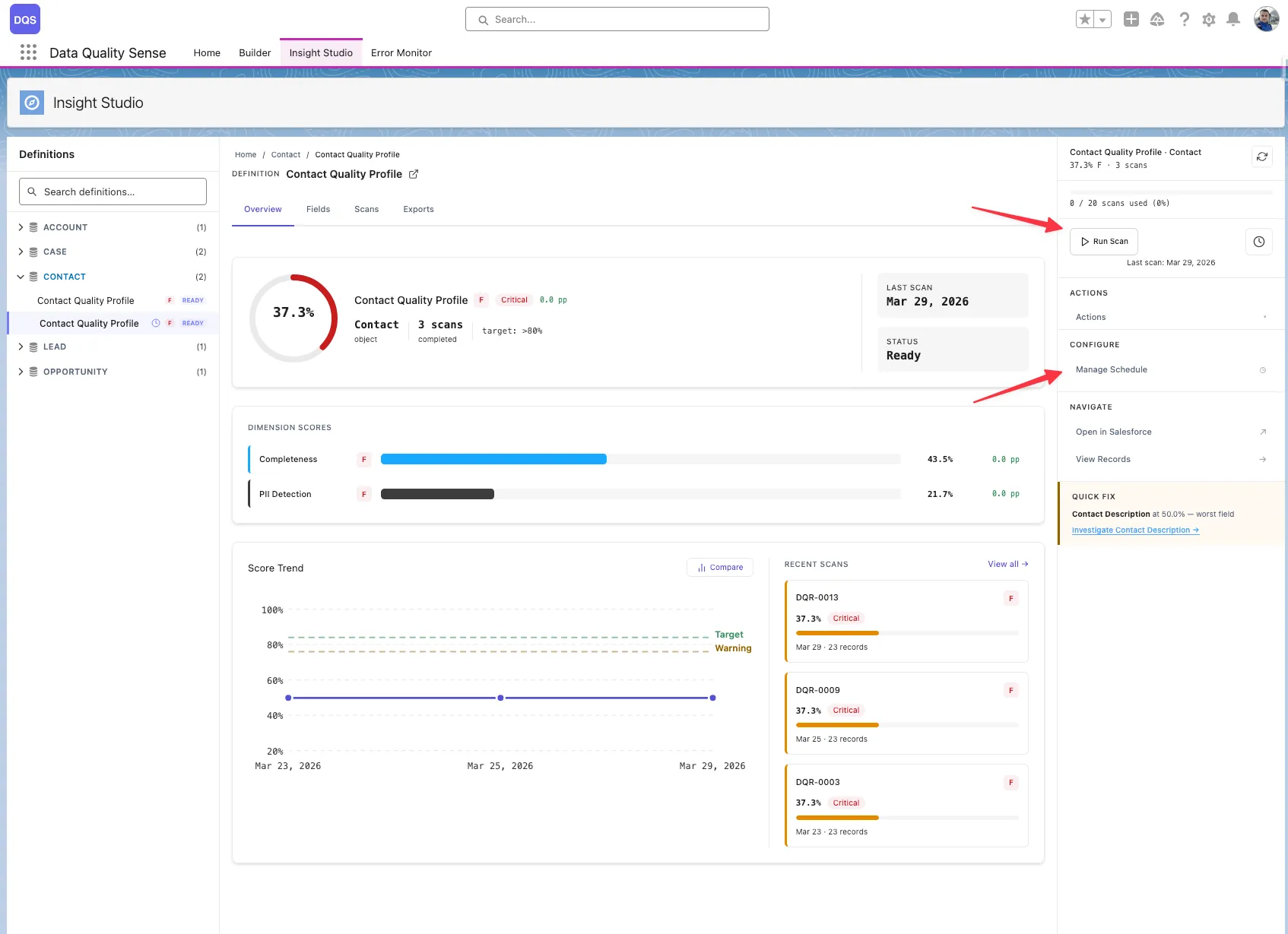
Run the scan
Go to Insight Studio and trigger a scan manually, or set up a schedule.
-
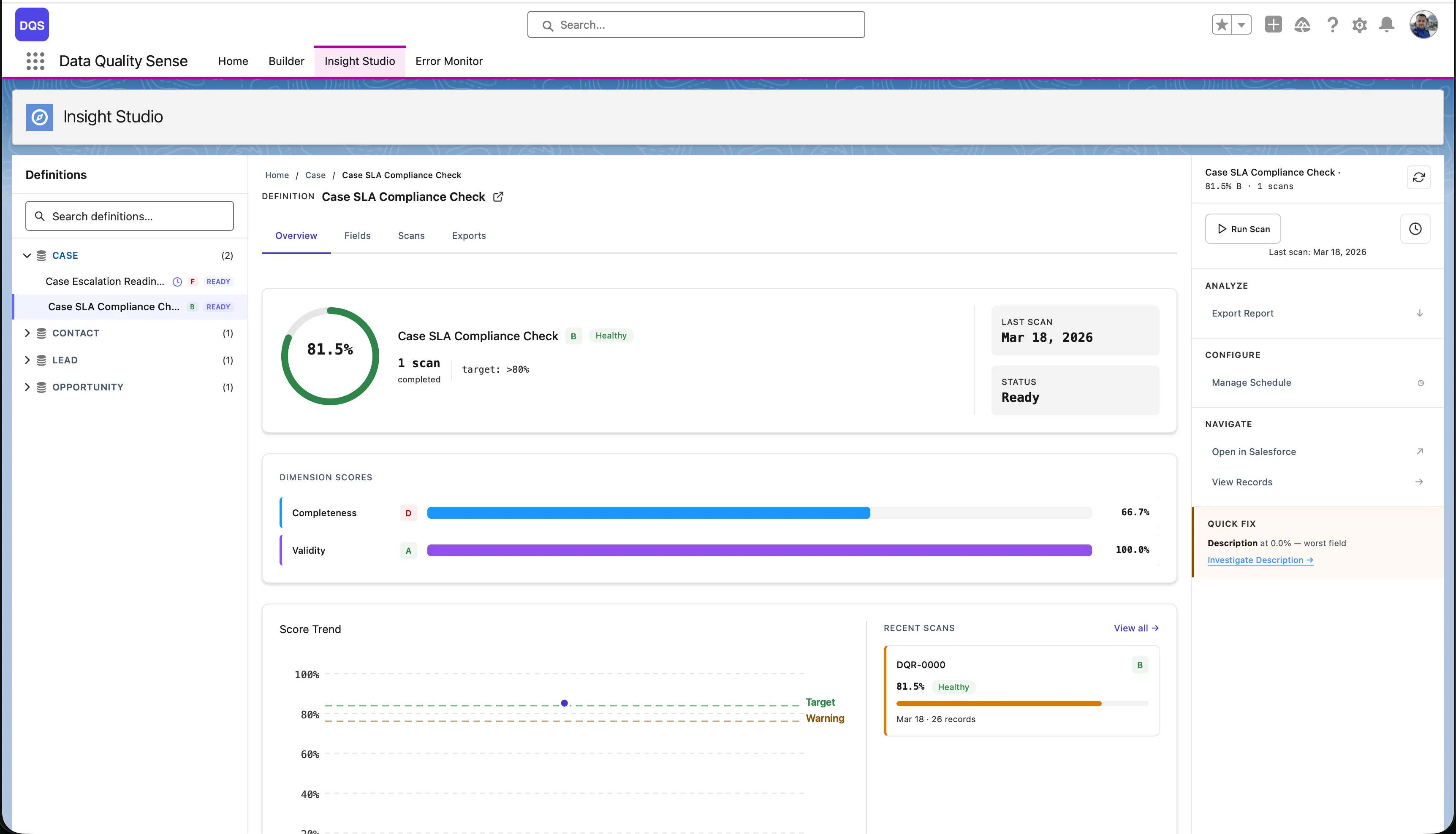
View results
After the scan completes, Insight Studio shows your data quality scores with drill-down to field-level details.
What’s Next?
Section titled “What’s Next?”- Learn about all 7 quality capabilities
- Explore Insight Studio dashboards
- Set up automated scan schedules