
Permissions
Permission Sets
Section titled “Permission Sets”Data Quality Sense ships with permission sets that control access to different parts of the application.
DQS Admin
Section titled “DQS Admin”Full access to all features:
- Create, edit, and delete scan definitions
- Configure capabilities and thresholds
- Run and schedule scans
- View all results in Insight Studio
- Access the Error Management Console
- Manage data retention settings
DQS User
Section titled “DQS User”Read-only access to results:
- View scan results in Insight Studio
- Export data to CSV
- View scan schedules
Assigning Permission Sets
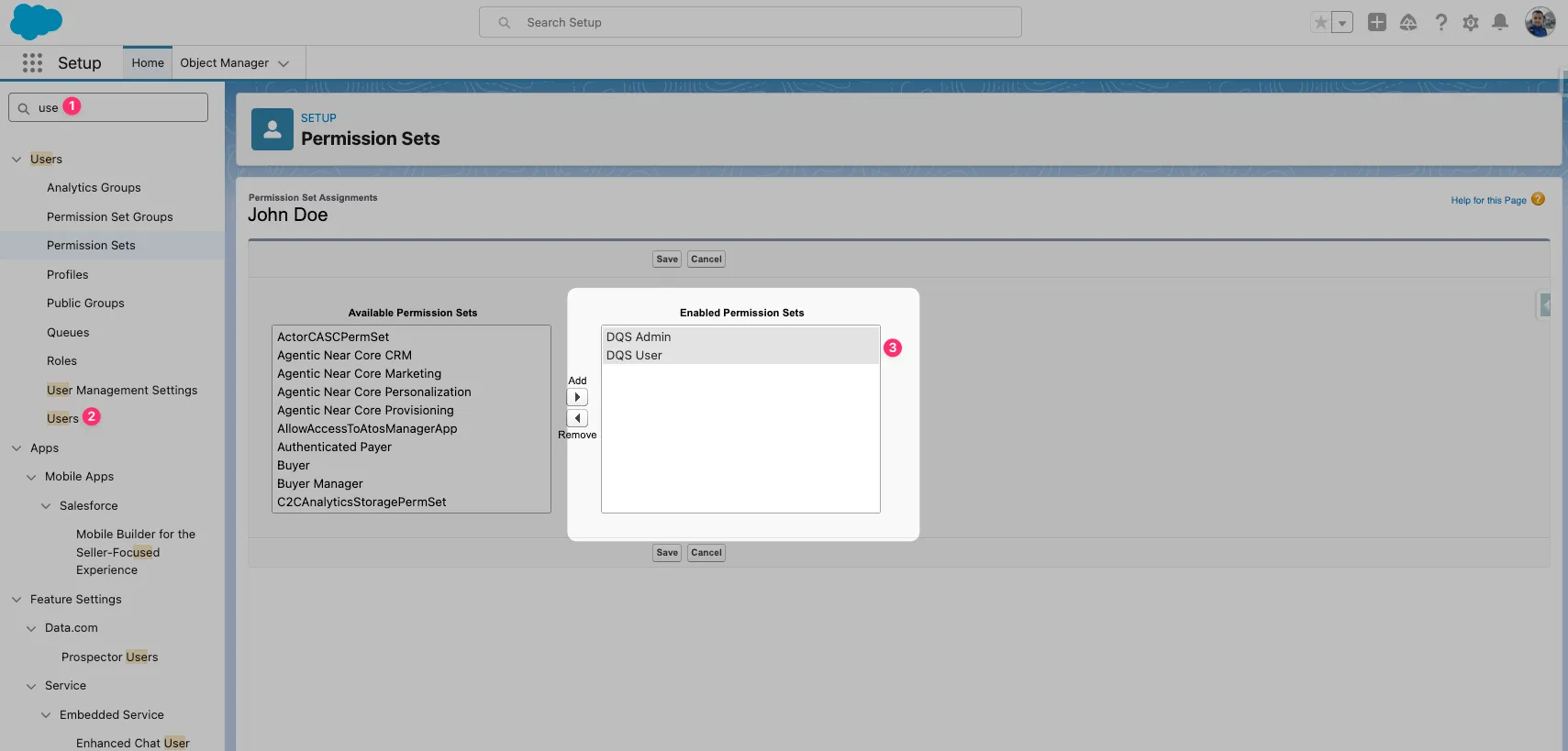
Section titled “Assigning Permission Sets”- Navigate to Setup → Users → Permission Set Assignments for the target user
- Click Edit Assignments
- In the Available Permission Sets list, find DQS Admin or DQS User
- Move the desired permission set to Enabled Permission Sets using the arrow button
- Click Save
Object Permissions
Section titled “Object Permissions”The permission sets automatically grant access to DQS custom objects:
| Object | Admin | User |
|---|---|---|
DQS_Definition__c | Read/Create/Edit/Delete | Read |
DQS_Definition_Detail__c | Read/Create/Edit/Delete | Read |
DQS_Dimension_Result__c | Read | Read |
DQS_Field_Result__c | Read | Read |
DQS_Metric_Result__c | Read | Read |
DQS_Batch_Schedule__c | Read/Create/Edit/Delete | Read |
Field-Level Security
Section titled “Field-Level Security”All fields on DQS objects are visible to both permission sets. Metric results, scores, and configuration fields are read-only for DQS User.