
Installation
Prerequisites
Section titled “Prerequisites”- Salesforce org (Enterprise, Unlimited, or Developer Edition)
- System Administrator profile or equivalent permissions
- Lightning Experience enabled
Install the Package
Section titled “Install the Package”-
Get the installation link
Contact us at dataqualitysense.com to receive the managed package installation URL for your org.
-
Choose installation scope
Select who should have access:
- Install for Admins Only — recommended for initial setup
- Install for All Users — if all users need immediate access
- Install for Specific Profiles — for granular control
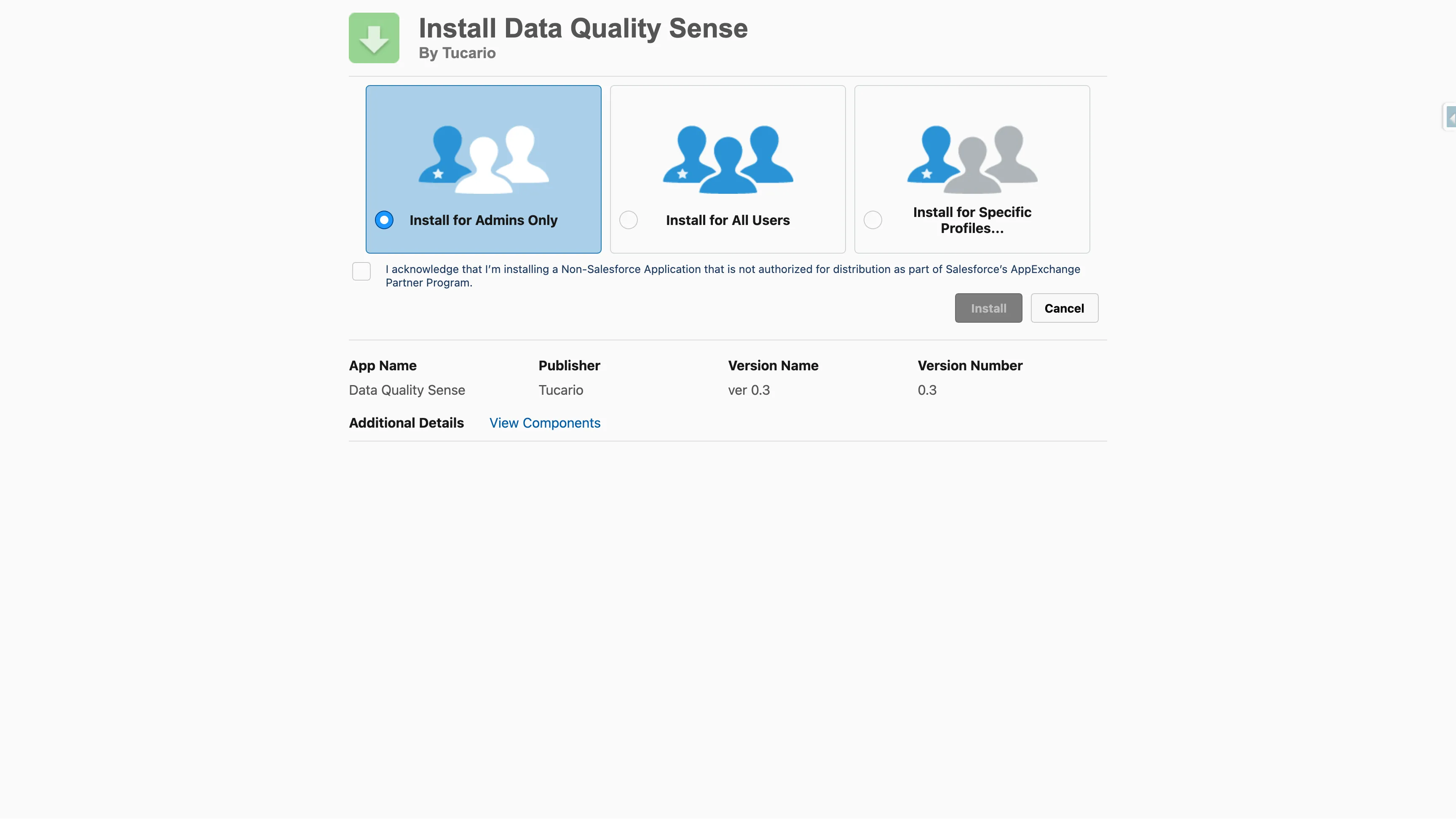
-
Approve third-party access
The package does not require any external callouts. All processing happens within your Salesforce org.
-
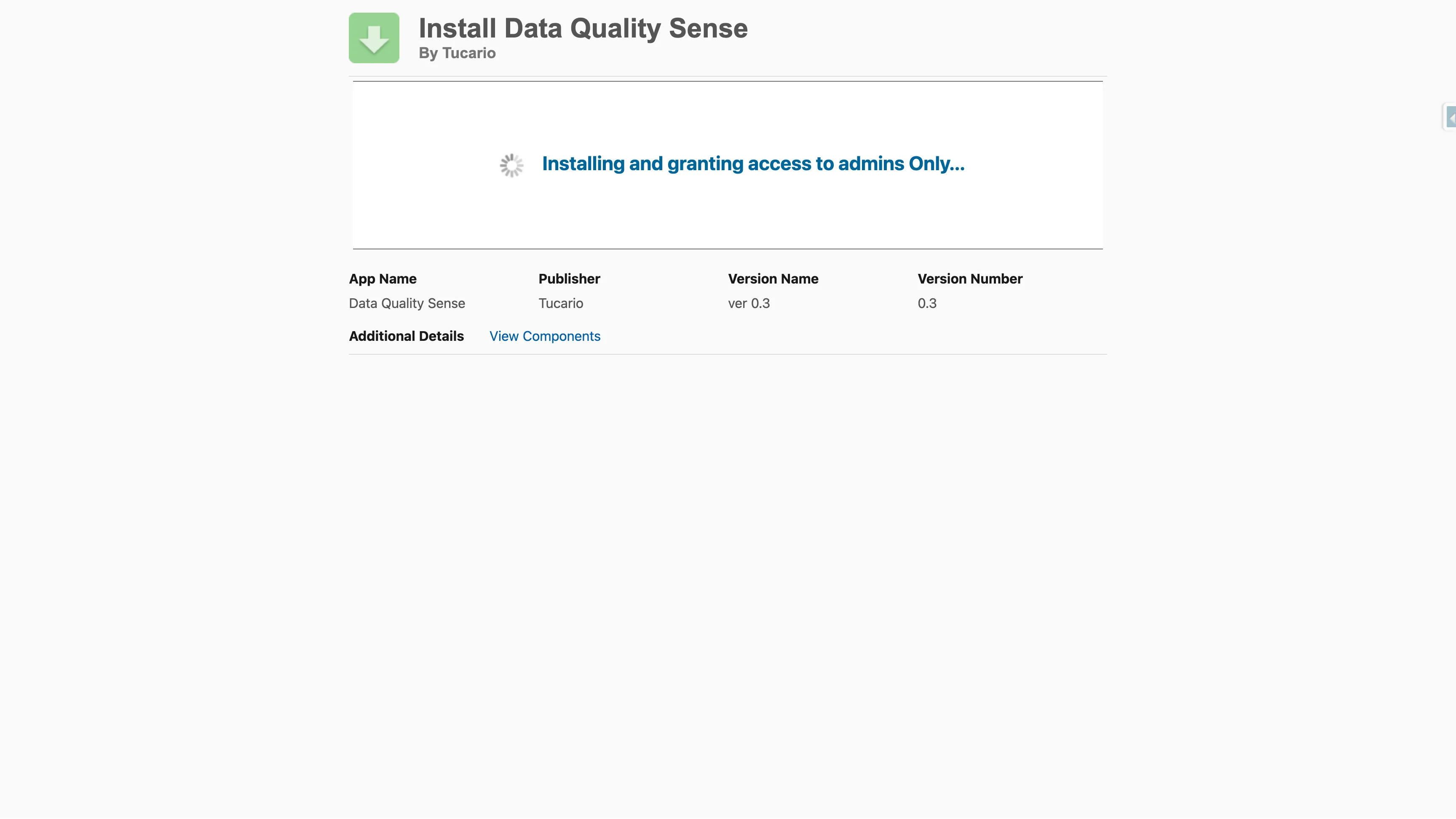
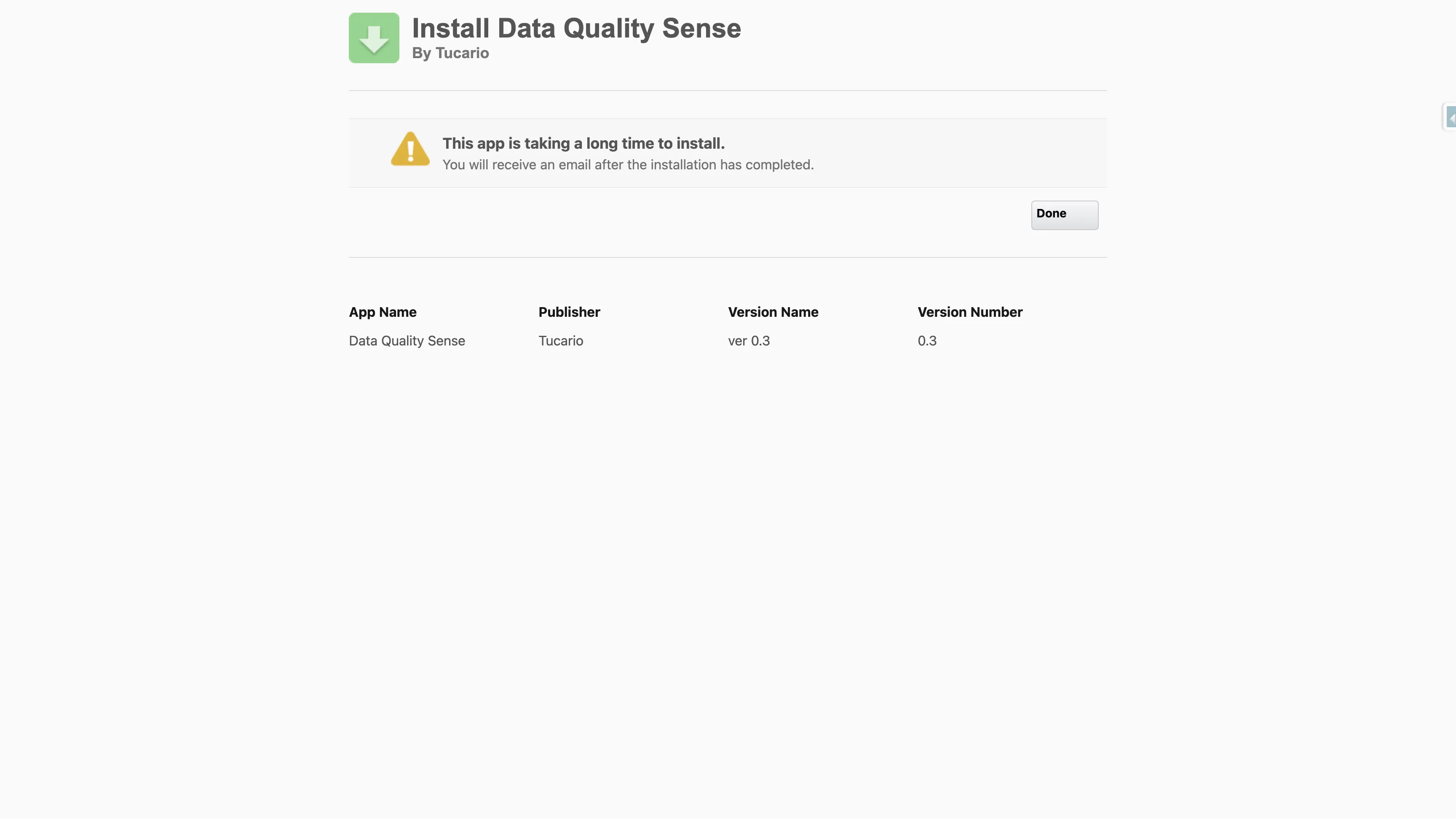
Wait for installation to complete
The installer will show progress. For larger orgs, installation may take a few minutes — you will receive an email once it completes.
-
Verify installation
Navigate to Setup → Installed Packages and confirm
Data Quality Senseappears with namespacedataqualitysens.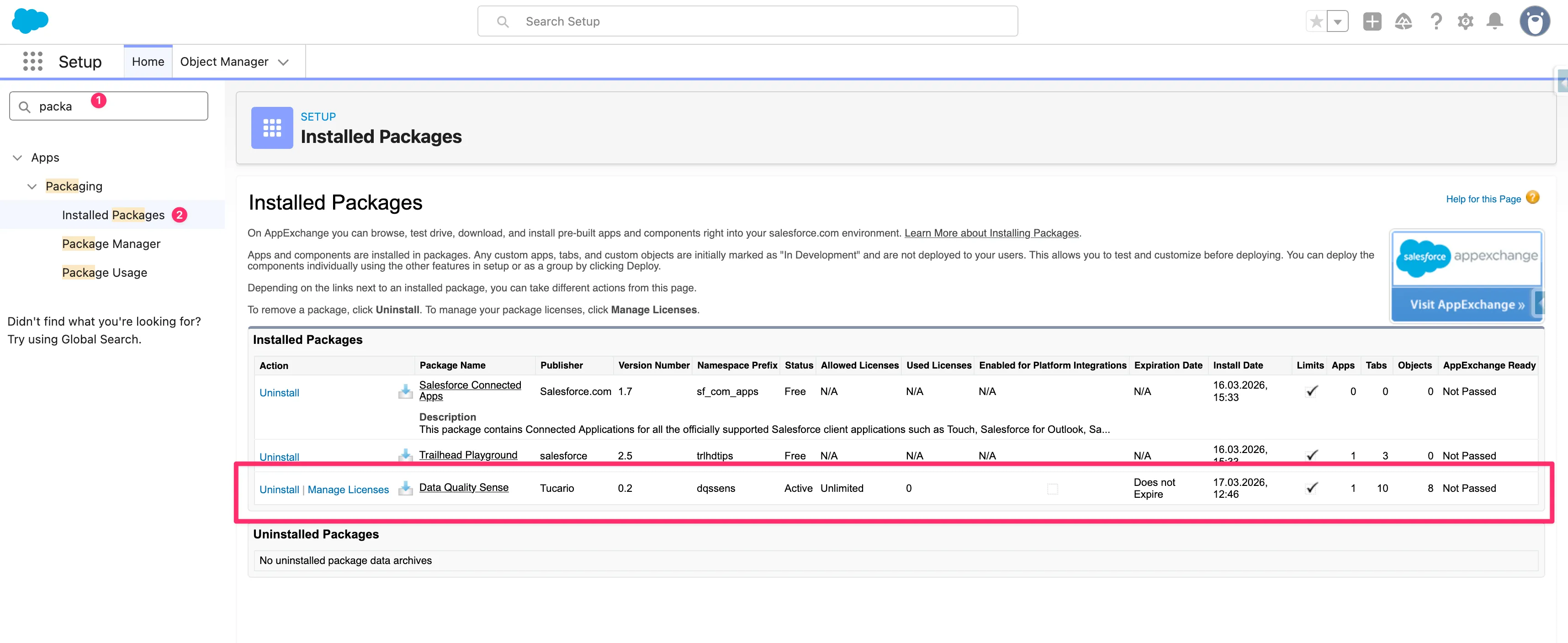
Activate the App
Section titled “Activate the App”After installation, Data Quality Sense is not yet active. When you open the app for the first time, you will see a lock screen indicating that activation is required.
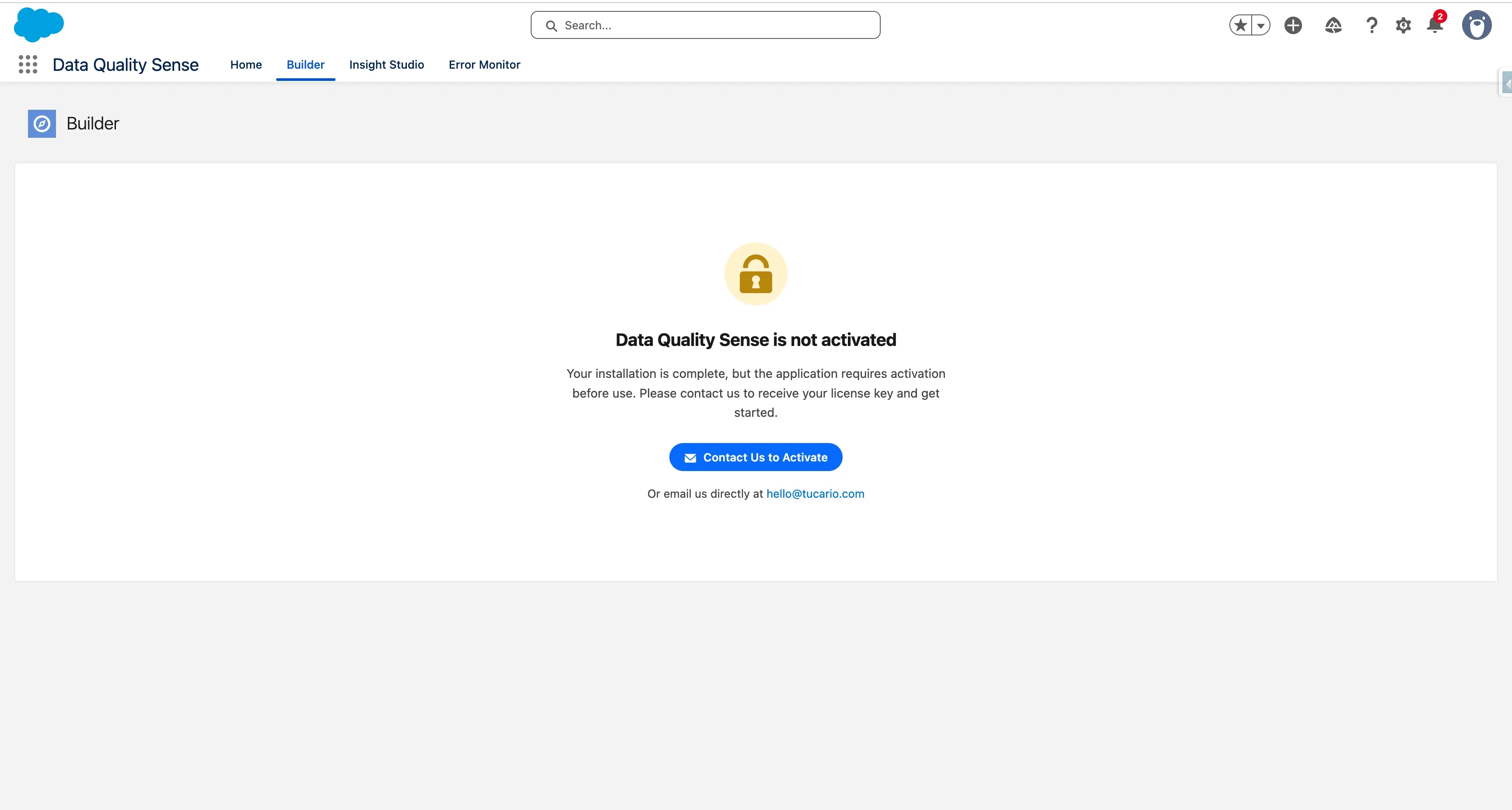
Click Contact Us to Activate to open a pre-filled email with your Org ID and details. You can also email us directly at hello@tucario.com.
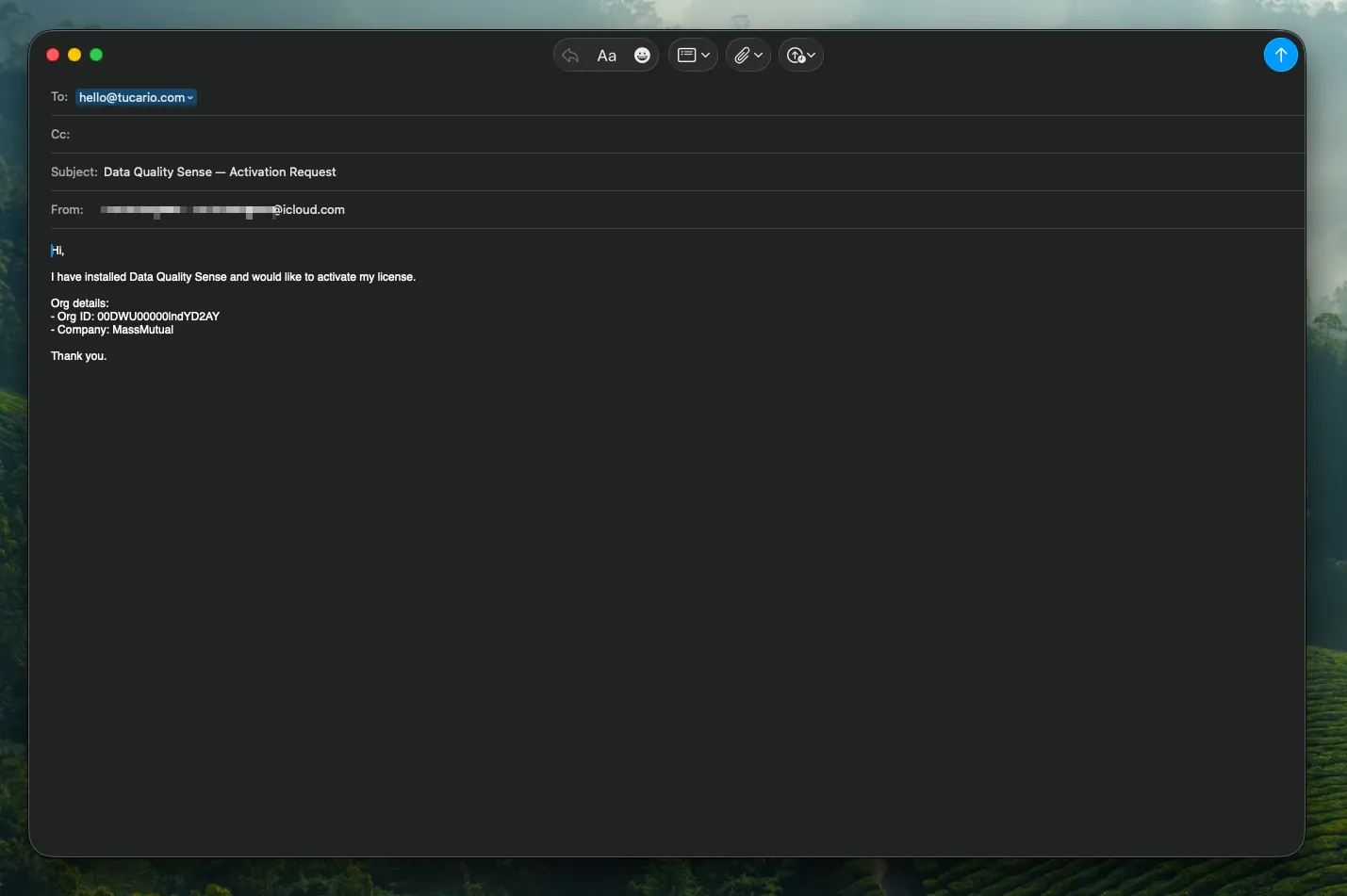
We will enable the app remotely — no additional installation steps are needed on your side. Once activated, the lock screen disappears and the app is ready to use with 20 scans included.
Post-Installation
Section titled “Post-Installation”The package installs all required components — custom objects, Lightning components, and permission sets. No additional configuration of these components is needed.
Updating the Package
Section titled “Updating the Package”To upgrade to a newer version, use the same installation link — Salesforce will detect the existing package and offer an upgrade path. The installer shows your currently installed version and the new version available. Choose the same installation scope as before (or change it if needed) and click Upgrade.
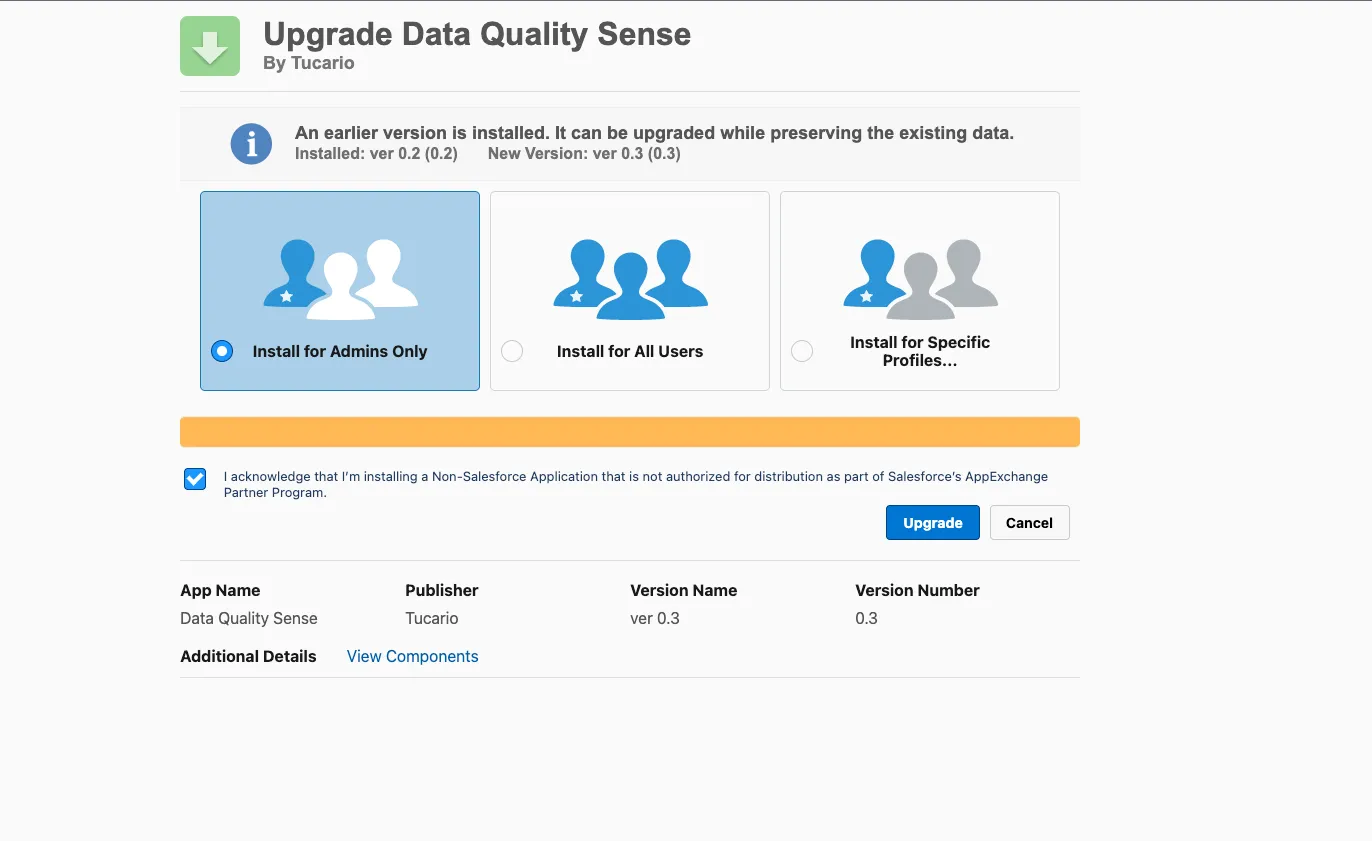
Your scan definitions, results, and configuration are preserved during upgrades — no data is lost.