
Validity
What is Validity?
Section titled “What is Validity?”Validity measures whether field values conform to expected formats, ranges, and patterns. A field can be populated (complete) but still contain invalid data — Validity catches these issues.
How It Works
Section titled “How It Works”The Validity strategy evaluates each field value against expected rules:
- Picklist fields — Checks that values match the defined picklist values (including metadata and live values)
- Text fields — Validates against format patterns (e.g., email format, phone format)
- Number fields — Validates against expected ranges
- Date fields — Checks for reasonable date ranges
Configuration
Section titled “Configuration”Global Settings
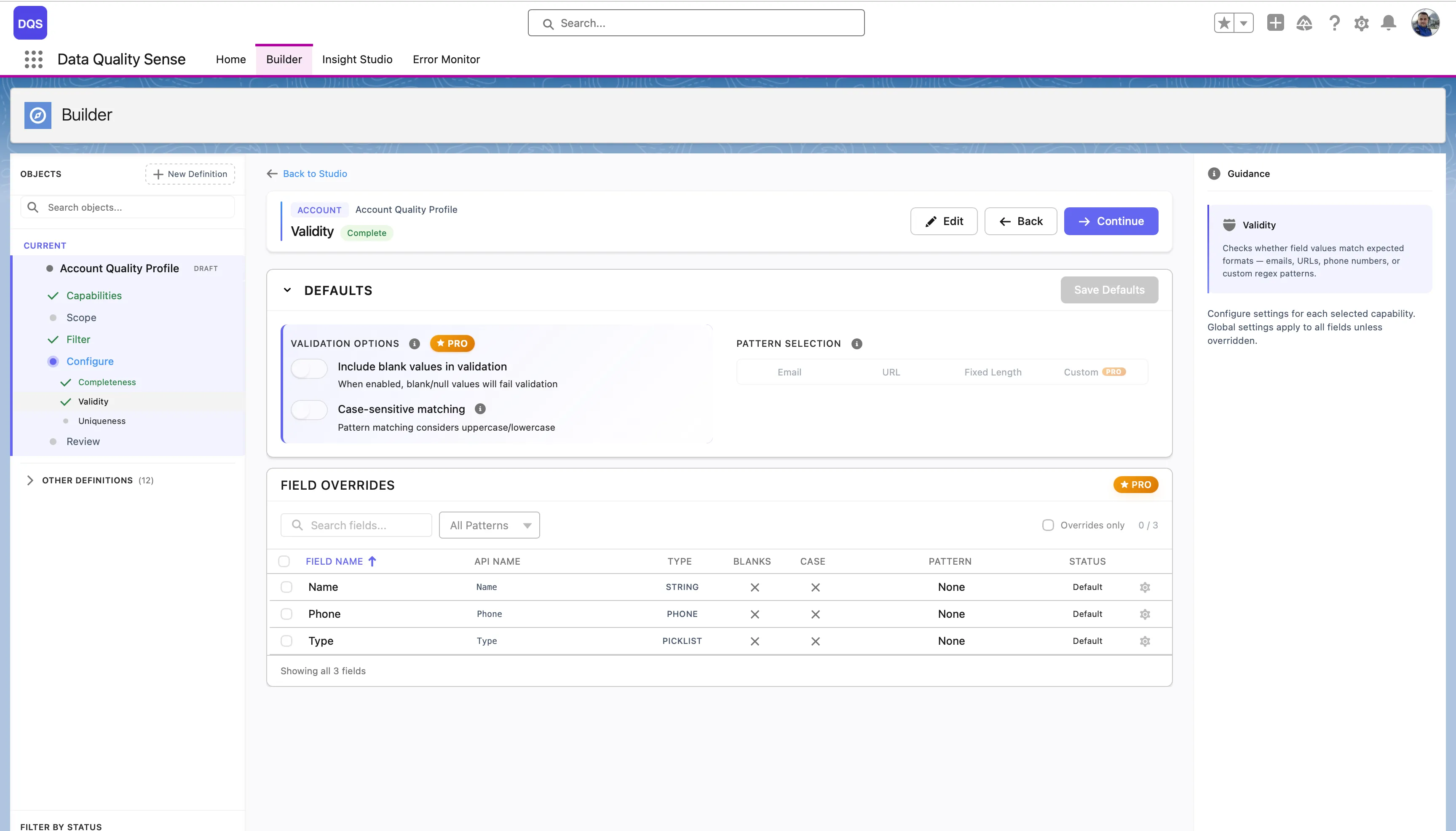
Section titled “Global Settings”The Defaults section controls global validation options that apply to all fields:
| Setting | Description |
|---|---|
| Include blank values in validation | When enabled, blank/null values will fail validation |
| Case-sensitive matching | Pattern matching considers uppercase/lowercase |
| Pattern Selection | Choose a default validation pattern (Email, URL, Fixed Length, or Custom regex) |
The Field Overrides table below lists each field in scope with its current pattern and status. Fields marked “Default” use the global settings, “None” means no pattern is assigned yet.
Per-Field Overrides
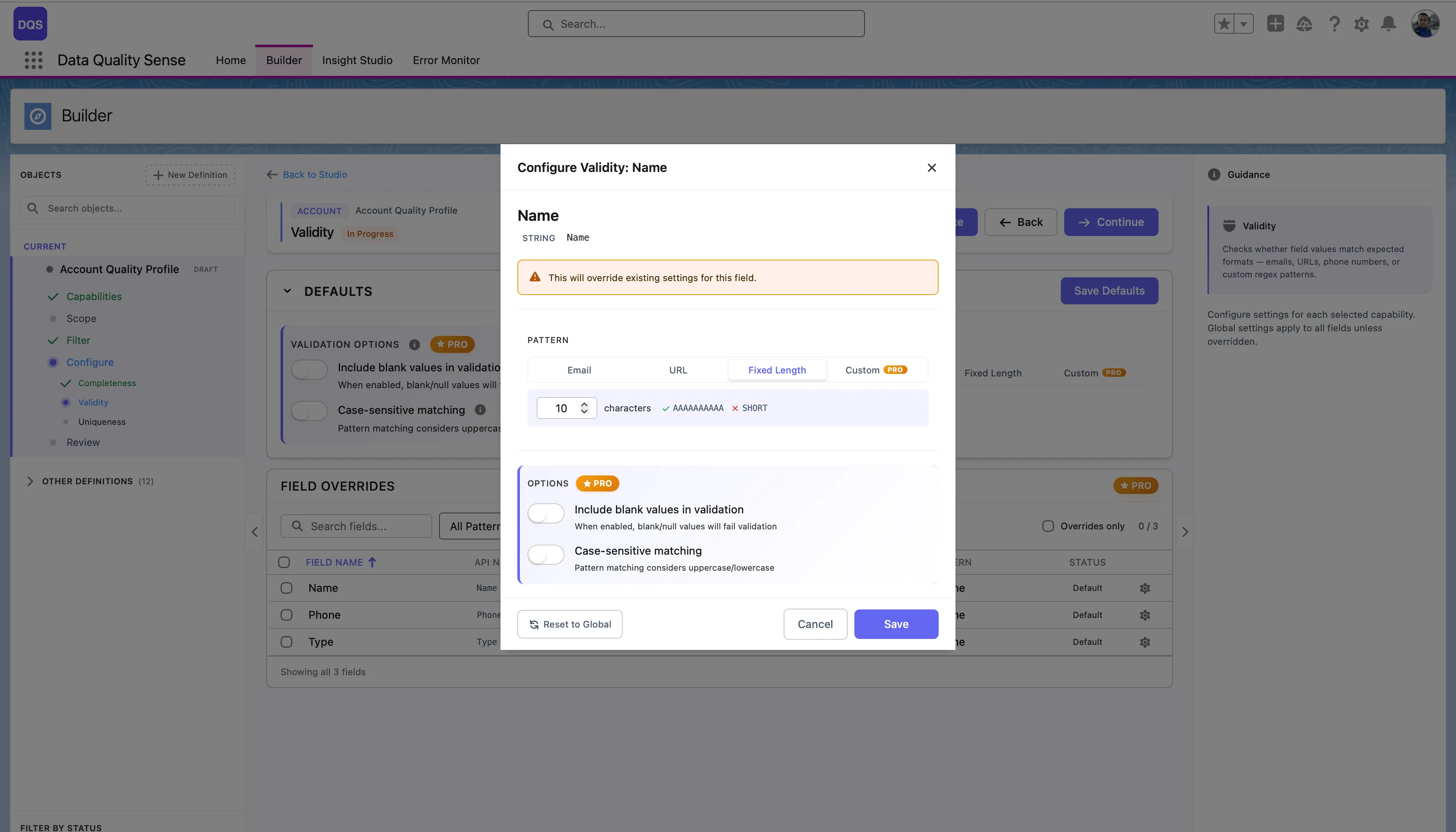
Section titled “Per-Field Overrides”Click on a field in the Field Overrides table to open its configuration modal. Here you can assign a specific validation pattern for that field — choose from predefined patterns (Email, URL, Fixed Length) or select Custom to enter your own regex. Each field override also lets you toggle Include blank values and Case-sensitive matching independently from the global defaults. Use the Revert to Global link to reset the field back to the global settings.
Scoring
Section titled “Scoring”| Result | Score |
|---|---|
| All values valid | 100 |
| Some invalid | Proportional to valid percentage |
| All invalid | 0 |
| No data | 0 |
Regex Patterns
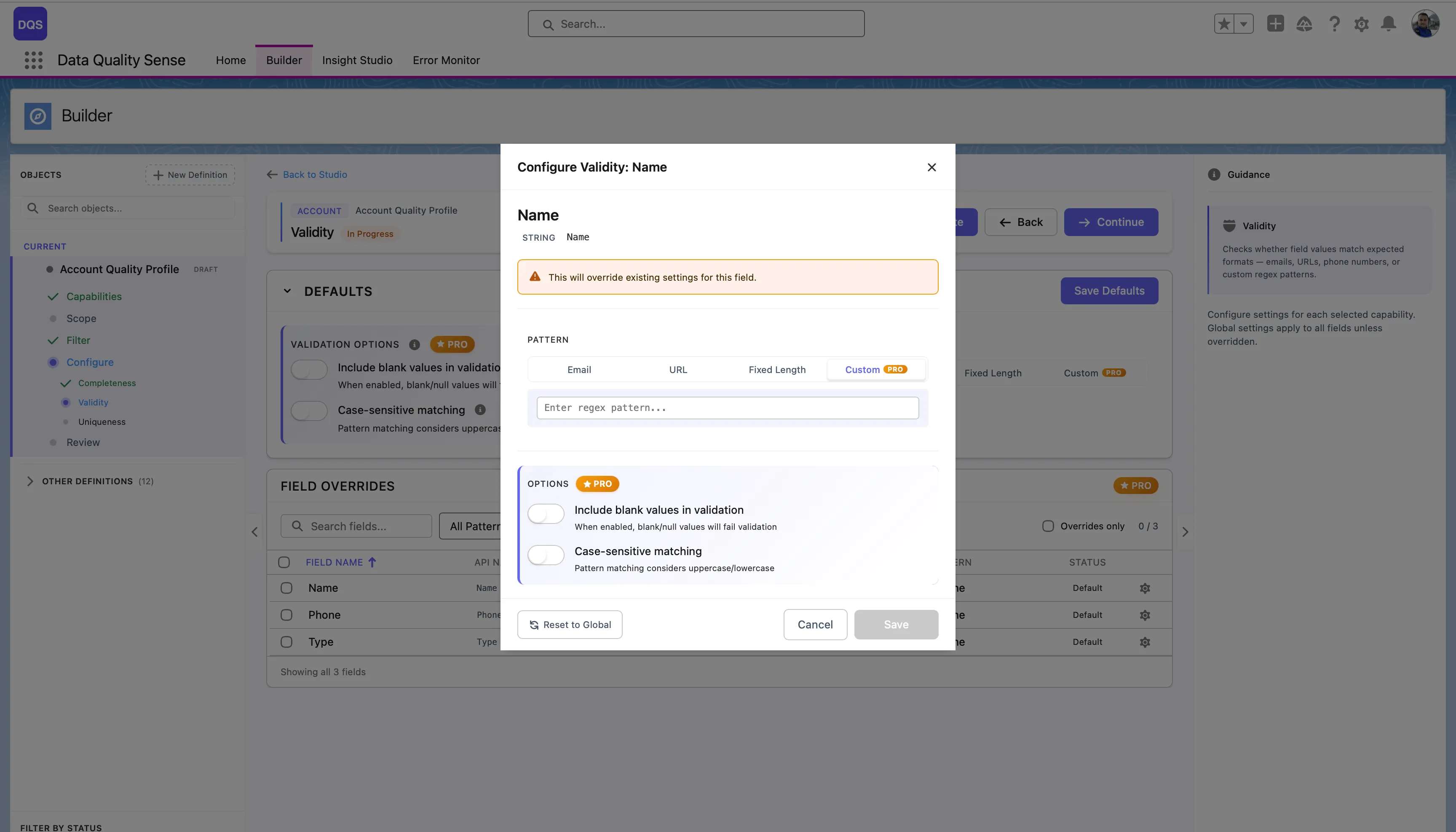
Section titled “Regex Patterns”DQS uses Java-compatible regular expressions for text field validation. When you select Custom in the pattern picker, a text field appears where you can enter your own regex pattern.
See the Regex Tester for an interactive tester and a library of ready-to-use patterns for email, phone, URL, postal codes, and more.
Use Cases
Section titled “Use Cases”- Ensure email fields contain properly formatted email addresses
- Verify picklist fields only contain approved values
- Detect free-text entries in fields that should use controlled vocabularies
- Validate phone number formats across regions