
Creating a Definition
What is a Definition?
Section titled “What is a Definition?”A definition is the core configuration unit in DQS. It specifies:
- Which Salesforce object to scan
- Which fields to evaluate
- Which quality dimensions (capabilities) to measure
- Optional per-field threshold overrides
Creating a New Definition
Section titled “Creating a New Definition”-
Click “New Definition”
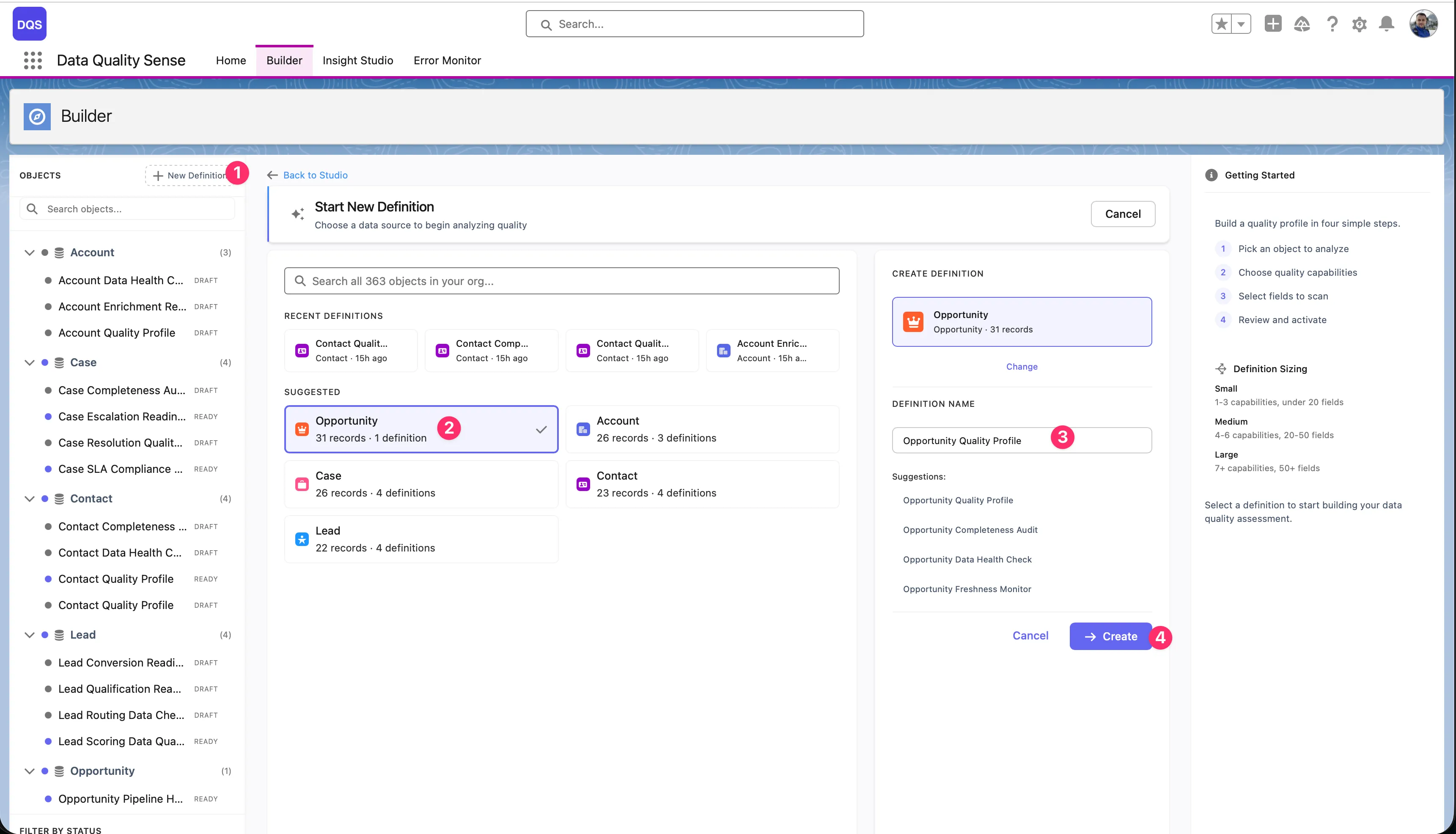
In the Builder tab, click the New Definition button in the top-left corner. A creation dialog opens with object search, recent definitions, and suggested objects.
-
Select the target object
Pick the SObject you want to scan. You can search all objects in your org, choose from Recent Definitions (objects you’ve already built definitions for), or select from the Suggested list (Account, Opportunity, Contact, Case, Lead). The dialog shows how many records and existing definitions each object has.
-
Enter a definition name
Once you select an object, the right-hand panel shows a name field with auto-generated suggestions based on the object (e.g., “Opportunity Quality Profile”, “Opportunity Completeness Audit”). Pick a suggestion or type your own name.
-
Click ”+ Create”
The definition is created in Draft status and opens in the Builder wizard.
Definition Settings
Section titled “Definition Settings”After creation, you can configure:
| Setting | Description |
|---|---|
| Name | Display name shown in lists and Insight Studio |
| Object | The target SObject (cannot be changed after creation) |
| Description | Optional notes about the scan’s purpose |
| Status | Current lifecycle stage (Draft, Ready, Active, Obsolete) |
Editing Existing Definitions
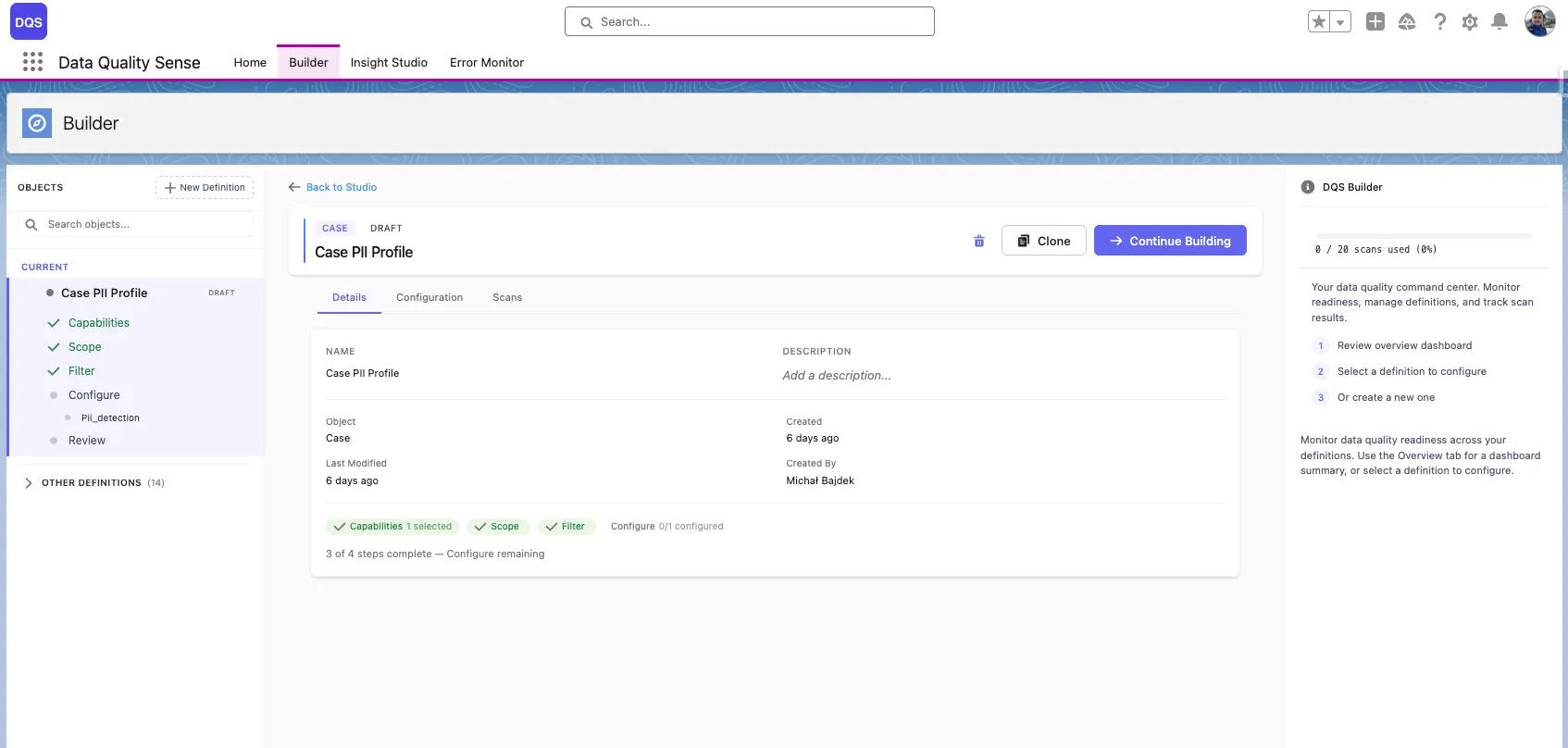
Section titled “Editing Existing Definitions”Open any definition from the Home tab’s recent activity table, or from the Builder’s sidebar navigation tree. Definitions in Draft status can be edited — click Continue Building to resume configuration.
Deleting Definitions
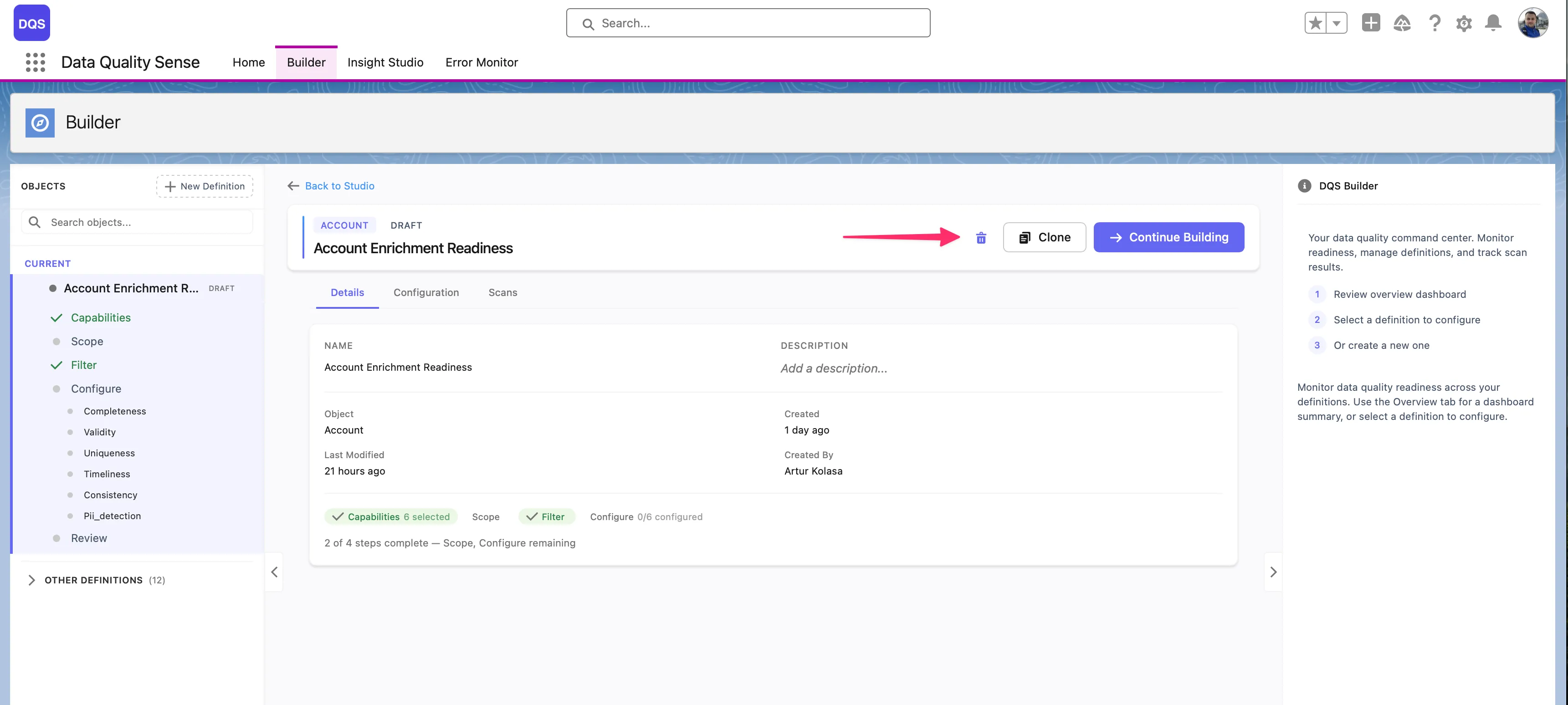
Section titled “Deleting Definitions”The delete button (trash icon) is only available when both conditions are met:
- The definition is in Draft status
- You have the DQS Admin permission set assigned
Active or completed definitions cannot be deleted — retire them to Obsolete status instead.
Deleting a definition removes all associated definition details, but preserves historical scan results for audit purposes.