
Configuring Capabilities
Capability Configuration
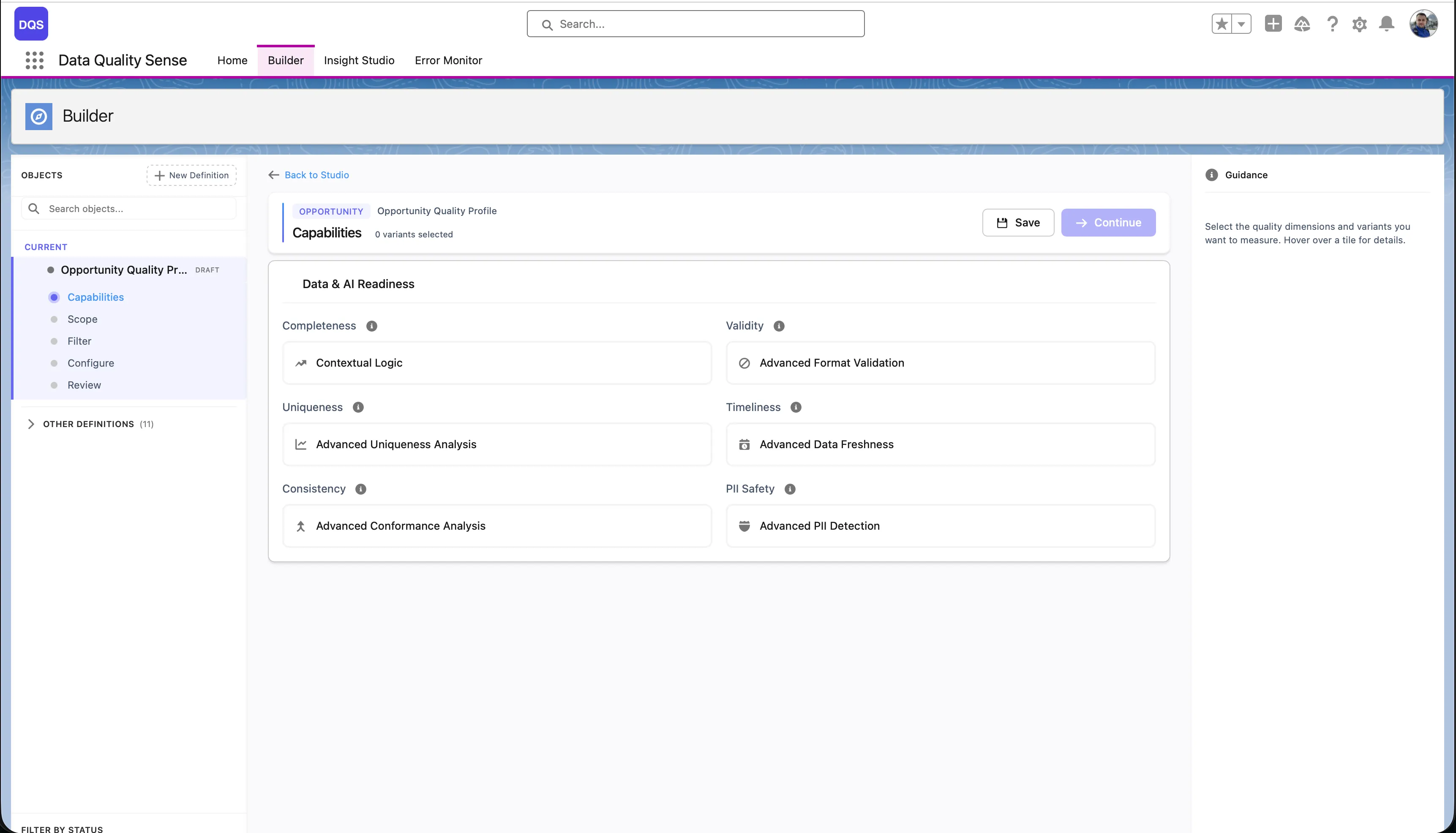
Section titled “Capability Configuration”The third stage of the Builder wizard lets you enable quality dimensions and configure their settings. Each capability evaluates a different aspect of your data quality.
Available Capabilities
Section titled “Available Capabilities”| Capability | What It Measures |
|---|---|
| Completeness | Are fields populated? |
| Validity | Do values match expected formats? |
| Uniqueness | Are there duplicate values? |
| Timeliness | Is data up to date? |
| Consistency | Are related fields logically consistent? |
| PII Detection | Is personal data properly handled? |
Enabling a Capability
Section titled “Enabling a Capability”Select a capability from the list to enable it. Each capability has:
- Global configuration — Default settings applied to all fields
- Per-field overrides — Custom settings for individual fields that differ from the global defaults
Field Compatibility
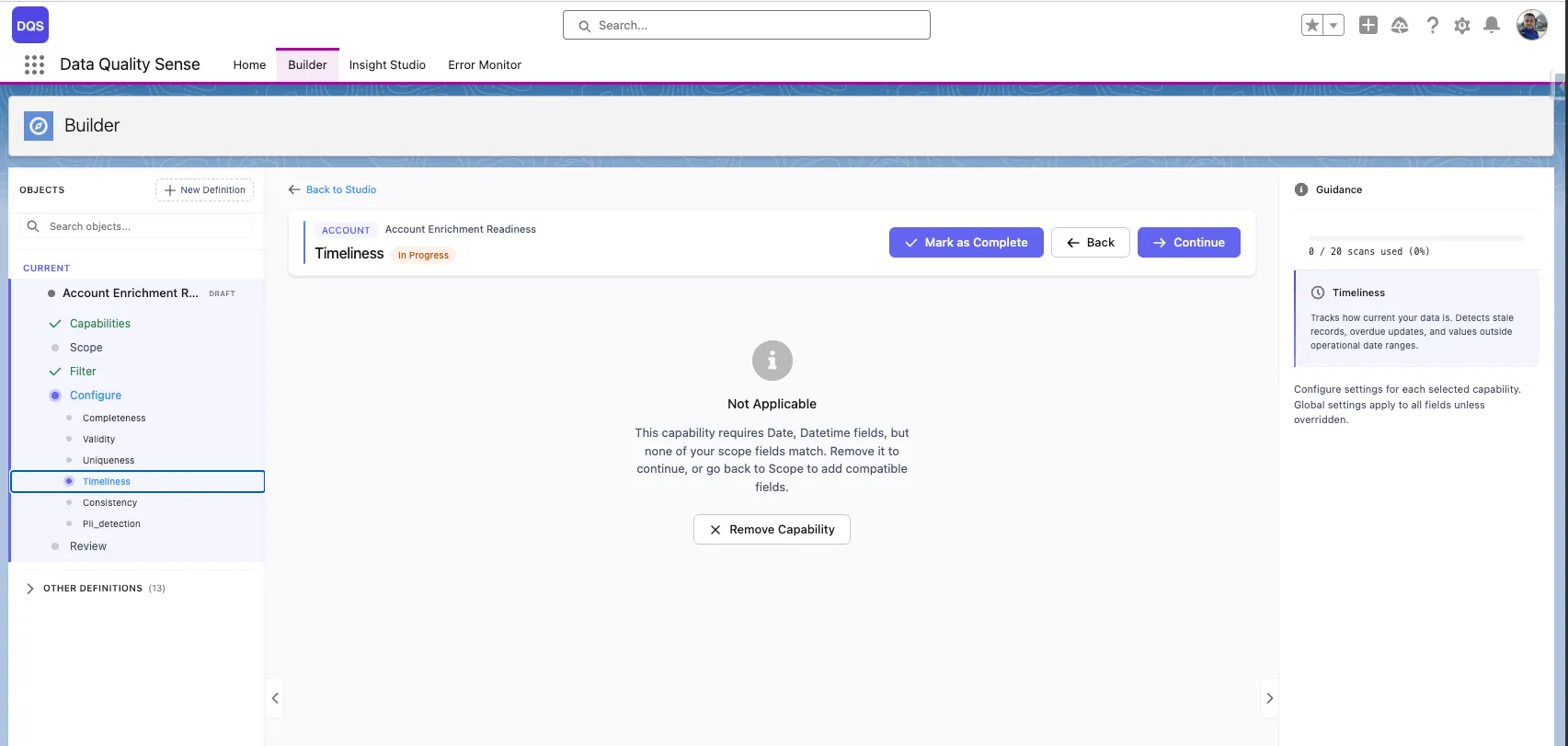
Section titled “Field Compatibility”Some capabilities require specific field types. For example, Timeliness only works with Date and DateTime fields. If none of the fields in your definition match, the capability displays a “Not Applicable” message and cannot be configured until you go back to scope and add compatible fields.
Global vs. Per-Field Configuration
Section titled “Global vs. Per-Field Configuration”Most capabilities allow you to set global thresholds and then override them for specific fields. For example:
- Completeness: Set a global “expected fill rate” of 90%, but require 100% for Email fields
- Validity: Define global format rules, but set custom regex patterns for specific text fields
- Timeliness: Set a global freshness window of 30 days, but use 7 days for critical date fields
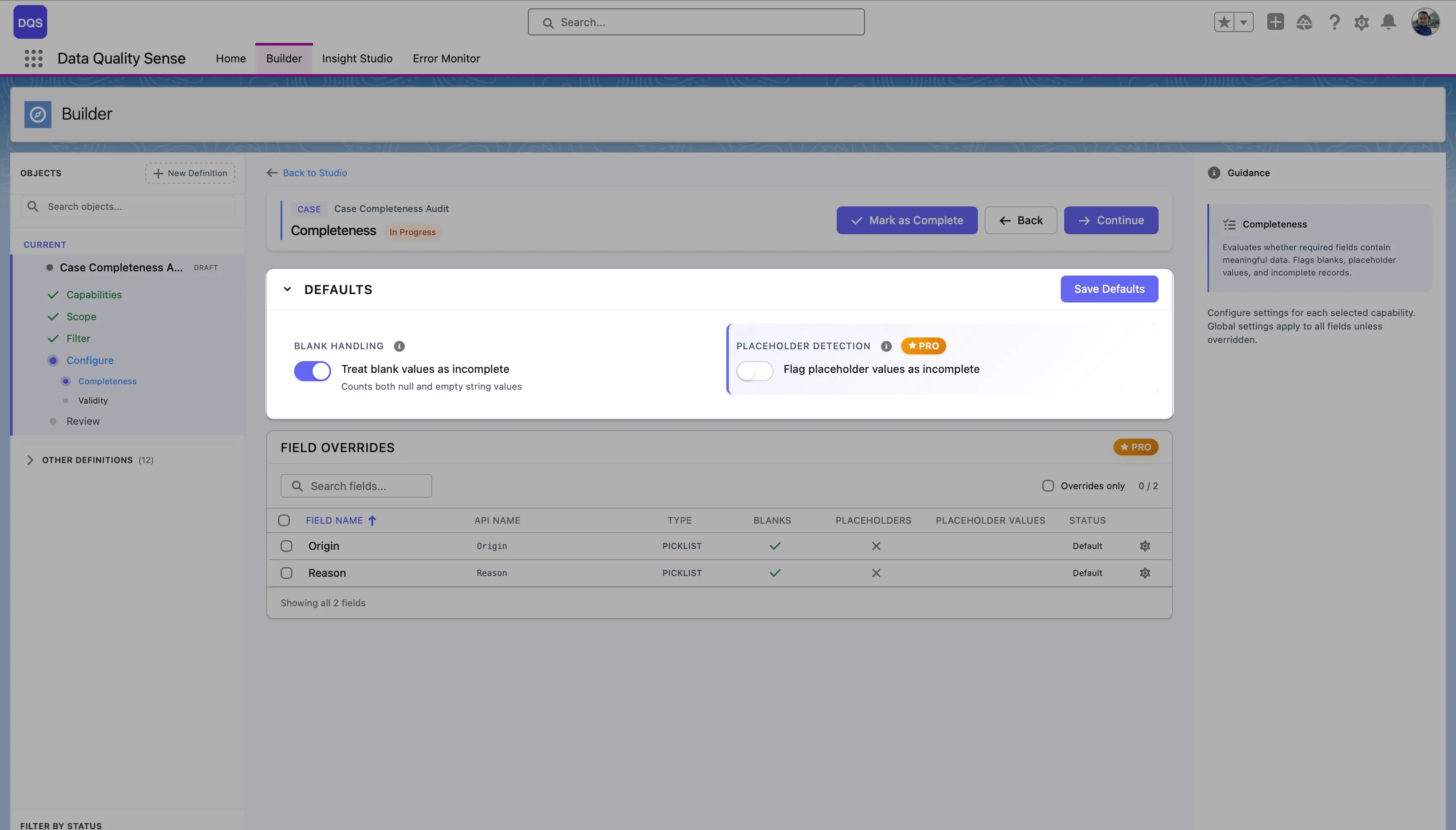
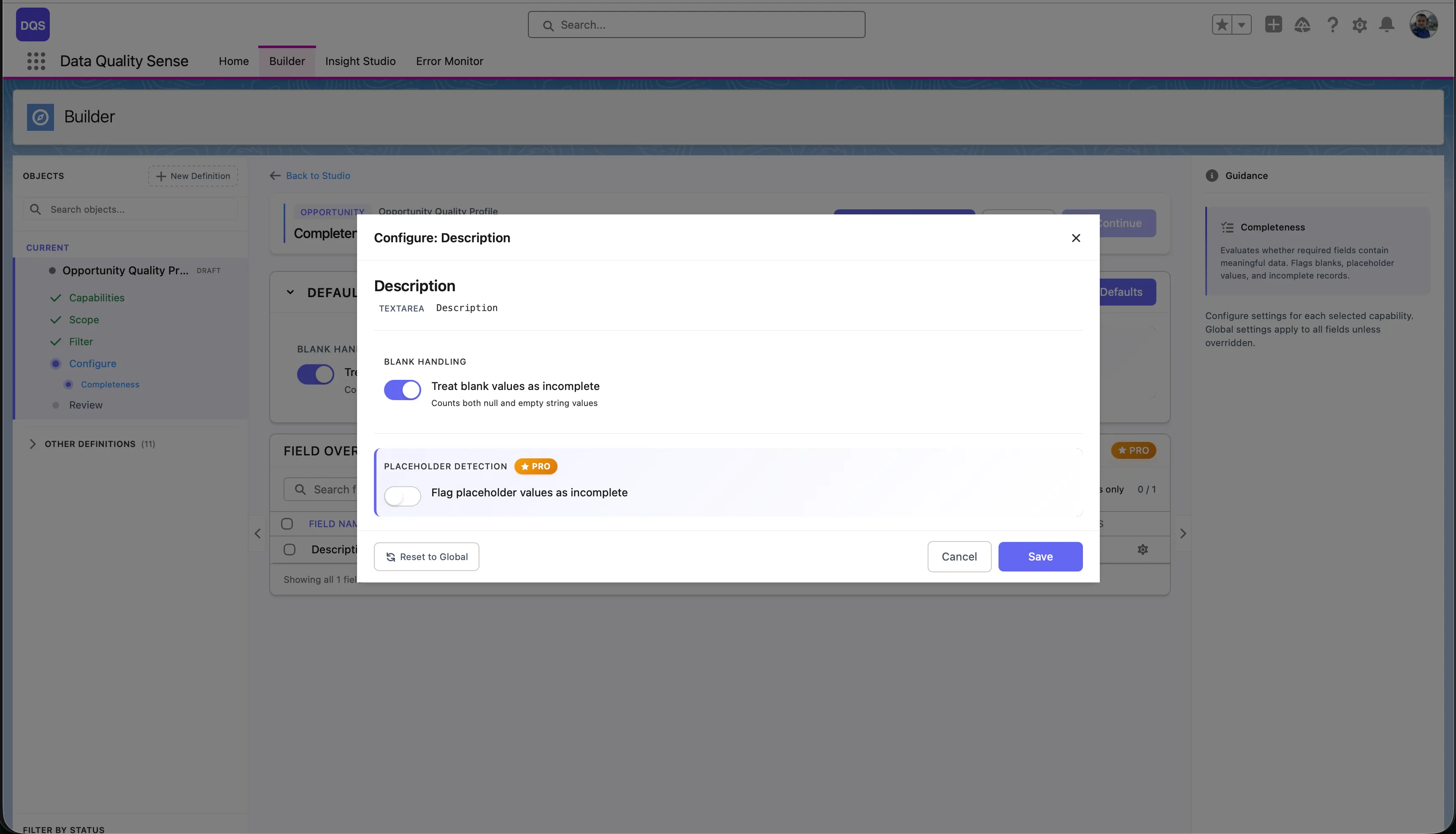
The Defaults section at the top controls global settings for the capability (e.g., Blank Handling and Placeholder Detection for Completeness). These apply to all fields unless overridden. The Field Overrides table below lists each field in scope with its current status — “Default” means the field uses the global settings.
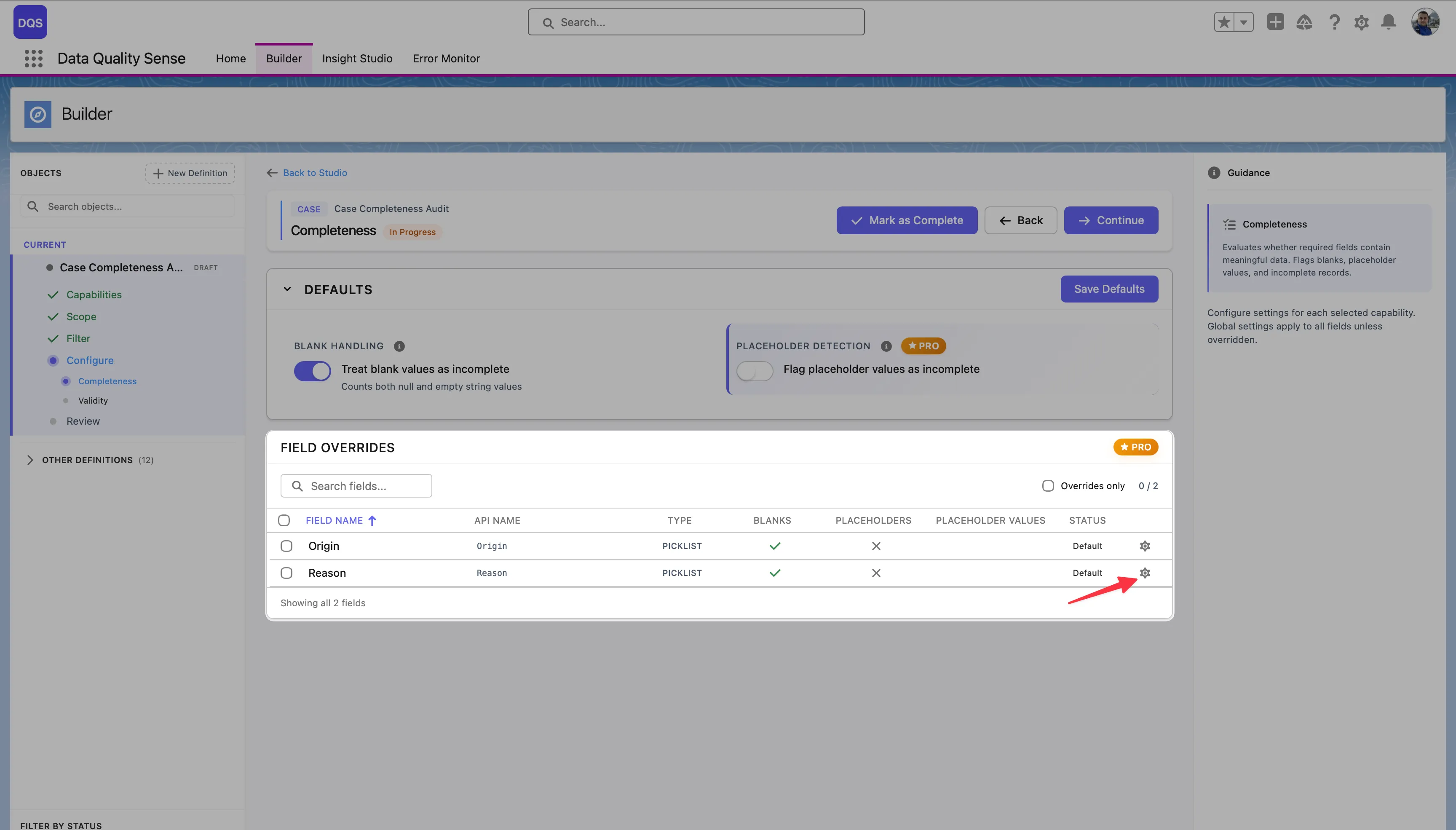
To override a specific field, click on it in the Field Overrides table. Its status changes to indicate a custom configuration. The red arrow below points to the Reason field after applying a per-field override.
Configuration Workflow
Section titled “Configuration Workflow”- Enable the capability — Toggle it on from the capability list
- Set global settings — Configure defaults that apply to all selected fields
- Add field overrides (optional) — Click on individual fields to customize their settings
- Review — The summary shows which fields have overrides
Removing a Capability
Section titled “Removing a Capability”Click the remove button on any enabled capability to disable it. This clears all global and per-field configurations for that capability. The action requires confirmation.